 Followloop: how it works
The idea in one minute
Followloop is not a bulk-mailing tool. It is for small teams who sell personally by email: owners, salespeople, freelancers. Everything you would normally type into a spreadsheet, the app works out from your mail.
The app tracks three independent things:
| What | Examples | Who changes it |
|---|---|---|
| Message type | reply, auto-reply, bounce, unsubscribe | rules; AI when rules can't tell |
| Lead stage | New, Contacted, Interested, Offer sent, Client... | AI suggests, you confirm (or AI applies it, if you allow that) |
| Address state | active, broken (bounce), unsubscribed, excluded | rules immediately, you manually |
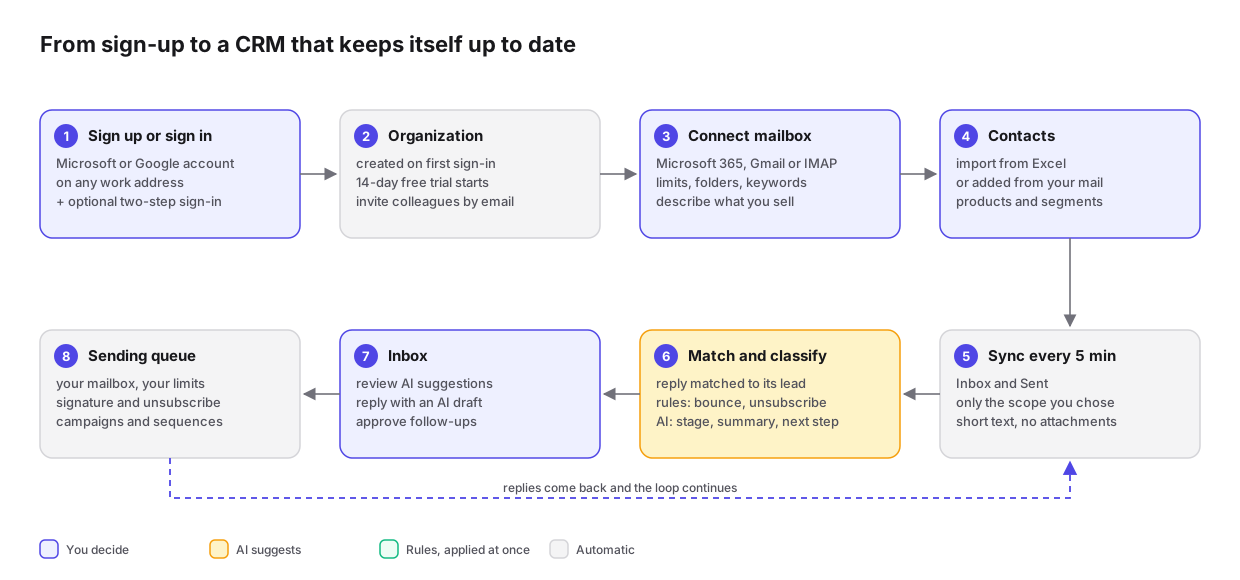
First run
- Open Followloop and sign in with a Microsoft account (any Microsoft 365 organization or a personal account) or a Google account. If nobody invited you, the app creates a new organization for you and your 14-day trial starts (see Organizations, users, products).
- Choose the interface language with the translate icon at the bottom left, next to your name (English and Croatian). The dark theme switch is there too. Both choices are remembered in your browser.
- In Settings, connect a mailbox, describe what you sell and, if you sell more than one product, add your products. Details follow below.
- Click Sync now on the Overview. The first sync reads the last 90 days of mail, up to 500 messages per folder per round; the rest comes in the following rounds.
Setup step by step
Everything you do in the app, in order. Optional steps are marked.
1. Sign in and language
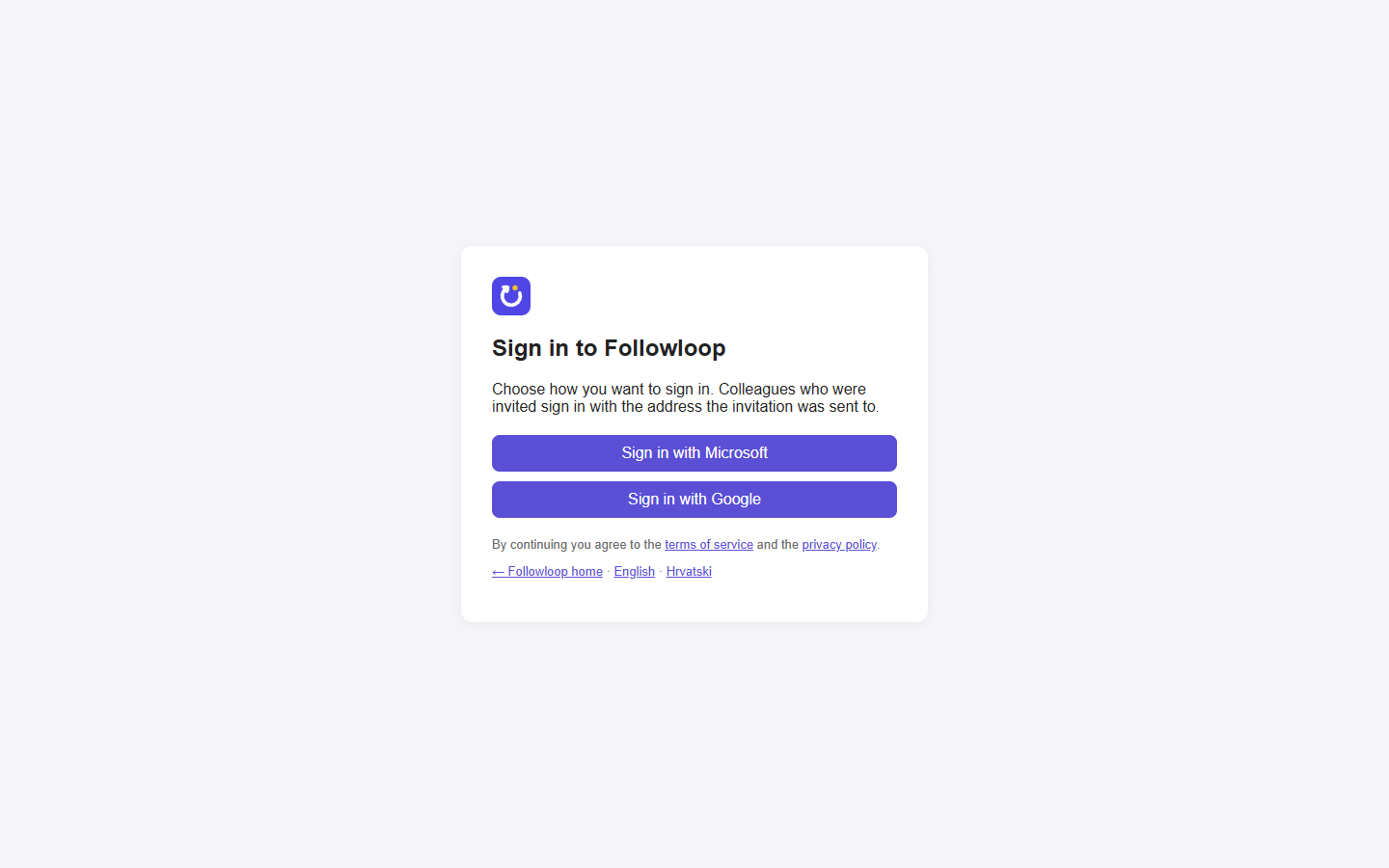
- Open the app. On Sign in to Followloop choose Sign in with Microsoft or Sign in with Google.
- If you are the first from your company, the app creates a new organization. If someone invited you, sign in with the address the invitation was sent to. The Microsoft account does not have to be a work account: a free one can be created for any existing address (signup.live.com → use your existing email).
- Choose the interface language with the translate icon at the bottom left, next to your name.
2. Connect a mailbox
Settings → Mailboxes → Add mailbox. Choose one of three ways:
| Steps | |
|---|---|
| Outlook / Microsoft 365 | Choose Connect Outlook / Microsoft 365, sign in with the account whose mail you are connecting and accept the permissions to read and send mail. You come back to Settings with "Mailbox connected". |
| Gmail | On the Google account turn on 2-Step Verification, then create an app password at myaccount.google.com/apppasswords. In Followloop choose Add Gmail (the servers are filled in), enter the Gmail address, the sender name and the app password, then Save. |
| Any other (IMAP/SMTP) | Choose Add IMAP/SMTP mailbox and enter what your mail provider gave you: IMAP server (port 993), SMTP server (port 587), user name and password. Save. |
- Click Test connection. It must say the connection works.
- Under Sending limits check the daily limit and the hourly limit. Ask your mail provider how many emails it allows; the defaults are 150 per day and 40 per hour.
- Optional: under What gets synced click Load folders and pick the folders with leads, enter subject keywords or turn on known contacts only.
- Optional: turn on Add new contacts from mail automatically and, next to Add contacts from mail already synced, click Add. New contacts get the stage "Contacted" (you wrote first) or "Conversation" (they wrote first), never "Client". When AI is connected, it first checks whether a new address is a customer or prospect; suppliers, colleagues, banks and the like are skipped and their messages stay in Mail.
- As soon as you change something, a bar You have unsaved changes appears at the bottom. Click Save, then Sync now on the Overview. The dot next to the mailbox address turns green.
3. Organization, AI and mail layout
- Settings → General: enter the organization name and choose the language of emails to recipients.
- Settings → Rules and offer: under What you sell write 2-4 sentences about the product, the price and your customers. Check Follow-up after and AI calls per month.
- The same page must say "AI is connected" with the model names, and Test AI must return a stage and a summary. If it says AI is not connected, contact support.
- Optional: Settings → Mail layout: add the signature and footer that go under every email. See Mail layout.
4. Products (optional)
- Settings → Products → Add product: name and a description for AI, then Save in the bar at the bottom.
- In Settings → Mailboxes choose Product of this mailbox if the mailbox is for one product only.
- Choose the product you are working on at the top of the menu.
5. Stages and fields (optional)
- Settings → Pipeline stages: rename stages, change their colour or add your own, then Save.
- Settings → Contact fields: add the fields you need on the contact card, then Save.
6. Colleagues
- Settings → Users: enter a colleague's email and click Invite. The invitation is sent from your mailbox and is valid for 14 days.
- The colleague opens the link and signs in with Google or Microsoft using that address. Colleagues from the same Microsoft 365 organization can join without an invitation if an owner turns on automatic admission in Settings → General. Details: Users and invitations.
7. Contacts
- Import and export: choose a product and segment, then Choose .xlsx. Review what would be imported and click Import.
- Or add a contact manually: Contacts → New contact.
- Or let the app add them from your mail (step 2).
8. First campaign
- Campaigns → New campaign (or Ctrl K → New campaign): name, subject, mailbox, product and the text in the HTML tab. Save.
- Choose the audience stages and check the list of recipients.
- Test to ... sends a test email to you. Look at it in your own inbox.
- Queue. Emails go out gradually; follow them in the Sending queue.
9. Every day
- Overview: how many conversations and decisions are waiting for you, what is due today and leads without a next step.
- Inbox → Waiting for me: answer the people waiting for you, with an AI draft or yourself. J and K move to the next and previous conversation, Ctrl+Enter sends.
- Inbox → To review: confirm or correct the AI's stage suggestions.
- Inbox → Drafts: review follow-up drafts, edit them and send.
- Mail: link or add as a contact the messages that did not match by themselves.
Organizations, users, products
Four terms, from the largest to the smallest:
| Term | What it is | Example |
|---|---|---|
| Organization | The company using Followloop. Everything (contacts, mail, campaigns, settings) belongs to one organization. Organizations cannot see each other. | Brightdesk Ltd |
| User | A person who signs in with a Microsoft or Google account. A user can belong to several organizations and switch between them in the organization menu at the top of the left menu. In each one they are an owner or a member, and a member can be limited to some products. | Emma (owner), Tom (member) |
| Mailbox | An address that sends mail and whose mail is read. It is not the same as the sign-in account: a user signs in with one account and can connect any number of mailboxes. | sales@brightdesk.example |
| Product | A separate line of sales within the organization, with its own contacts, campaigns, description for AI and optionally its own mailbox. You choose it at the top of the menu. | Clinic Booking, Shift Planner |
Example 1: a small company, one product
- Emma signs in with her Google account
emma@brightdesk.example. Nobody invited her, so the app creates a new organization with Emma as its first user. - In Settings → Mailboxes she connects the same
emma@brightdesk.exampleas Gmail. - She does not add products. AI uses the description from Settings → Rules and offer.
Example 2: one company, two products
- Brightdesk sells Clinic Booking and Shift Planner. Emma adds both in Settings → Products, with a description and price.
- She connects two mailboxes and chooses Product of this mailbox on each. Mail from
shifts@brightdesk.examplegoes only to Shift Planner. - The same address can be a contact in both products. Those are two separate contacts, each with its own stage. Unsubscribes and bounces apply to the address in every product.
Example 3: an agency selling for three clients
- Ivan signs in with his own account
ivan@xyz.example. It does not have to be any of the three mailboxes. - For each client he adds a product and connects its mailbox. For Outlook he signs in with exactly
sales@client-a.examplewhen connecting. For Gmail and IMAP he enters the app password or the mailbox password. - Switching the product at the top of the menu lets him work for one client at a time.
- A colleague who works only for Client A is invited as a member with access to the "Client A" product only. They cannot see the contacts, mail or campaigns of the other two clients.
Example 4: two companies
Every company that uses Followloop has its own organization. Data never mixes. The same address can be a contact in both organizations, and an unsubscribe in one does not apply in the other.
Example 5: a consultant in several organizations
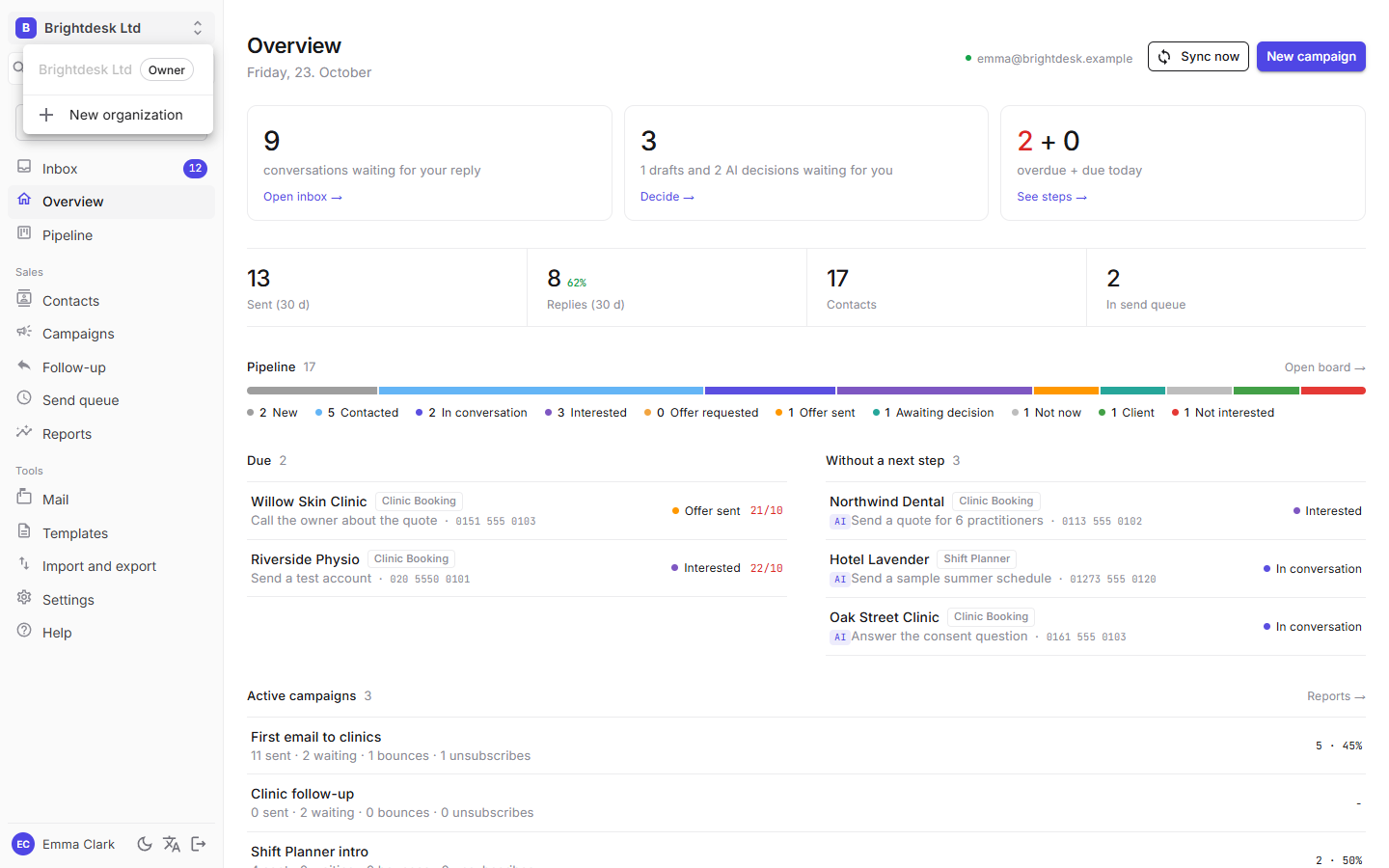
- Emma works in her organization Brightdesk Ltd. Client B has its own organization and invites Emma's address.
- Next time Emma signs in she also becomes a member of Client B's organization, without a new account. Her own organization stays.
- She clicks the organization name at the top of the left menu and picks the other one. Everything (contacts, mailboxes, settings) switches to that organization.
- New organization in the same menu creates an empty organization with Emma as owner. An agency can create a separate organization for each client and invite them later.
What is not possible yet
- Moving a product to another organization. Contacts can be exported to CSV and imported into another organization.
Users and invitations
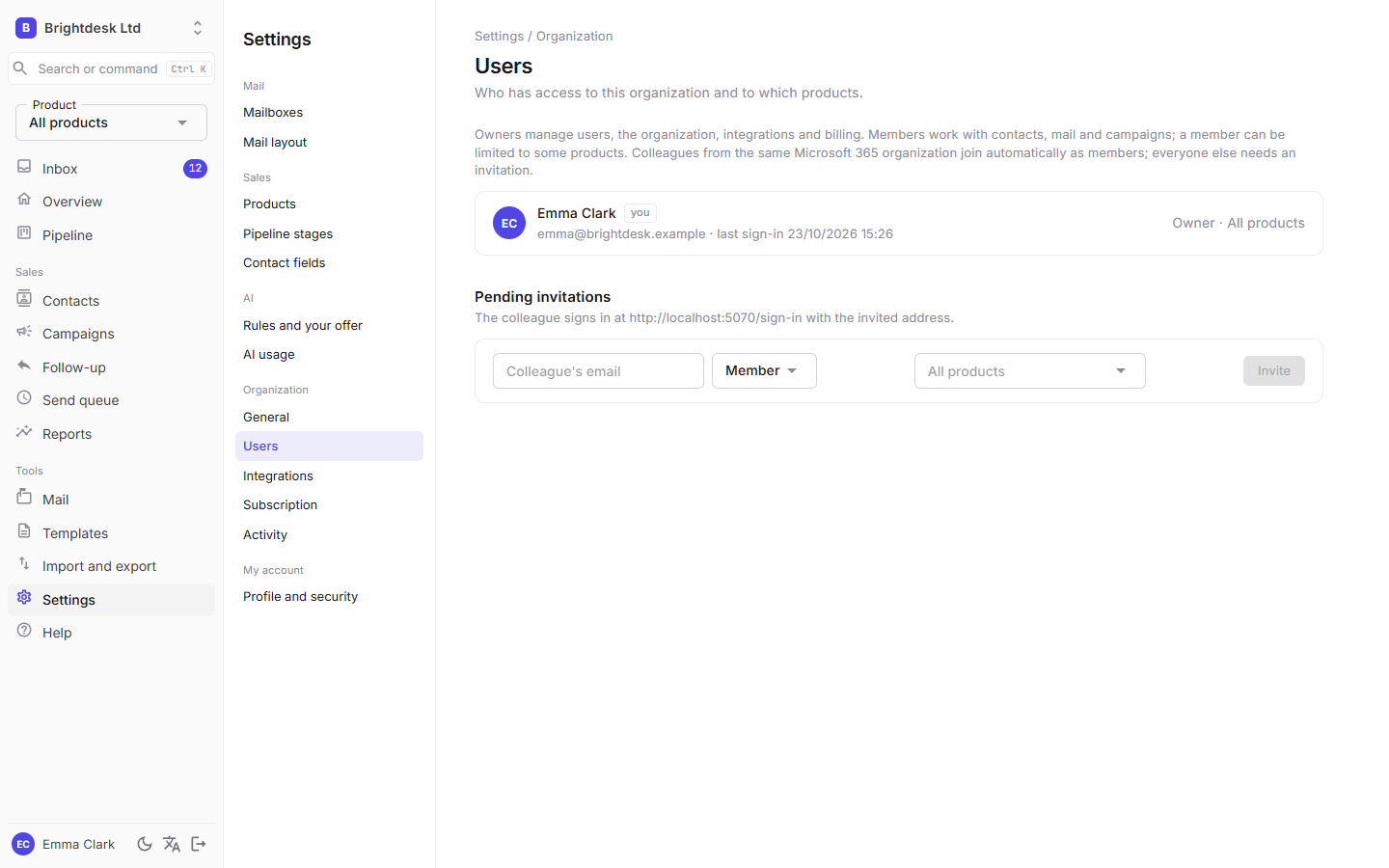
Settings → Users. Every user has a role:
| Role | What they can do |
|---|---|
| Owner | Everything: users and invitations, mailboxes (connecting, settings, removing, resuming sending), Mail layout, products, stages and contact fields, Rules and offer, General, Integrations, Subscription, Activity, export and deletion of the organization. Always sees every product. |
| Member | Day-to-day work: contacts, Inbox, mail, campaigns, follow-ups, templates and import. Sees mailboxes, tests them and checks their deliverability, but cannot change them. Can be limited to some products. |
A member with limited access sees only the contacts, conversations, campaigns, queue and reports of their products. The server enforces this, not just the menu. A mailbox without a product is shared and visible to everyone, but its unmatched mail is visible only to members without limits.
How people join an organization:
| Who | How they join |
|---|---|
| The first user | Signs in without an invitation. The app creates a new organization with them as owner. |
| A colleague from the same Microsoft 365 organization | Needs an invitation, unless an owner turns on Automatically admit colleagues from the same Microsoft 365 organization in Settings → General. Then they join as a member without an invitation, while the plan has seats. |
| Everyone else (Google, personal Microsoft, another domain) | Needs an invitation. Signs in with Google or Microsoft using the same address the invitation was sent to. If they are already in another organization, they stay there too. |
| A removed user | Cannot get back in, not even as a colleague from the Microsoft 365 organization. Only with a new invitation. |
- Enter the colleague's email, choose the role and, for a member, the products (empty means all). Click Invite. The invitation is sent from the default mailbox. If no mailbox is connected, send the colleague the sign-in address shown under the field.
- An invitation is valid for 14 days. Send again resends it and extends the deadline, Delete cancels it.
- Change an existing user's role and products in their row. An organization always needs at least one owner.
- Remove takes access away immediately. If the user is signed in, they are signed out within a few minutes.
- Leave this organization (Settings → Profile and security, Danger zone) is possible when you belong to another organization and this one has another owner.
If sign-in fails, the sign-in screen says why: "This account no longer has access to any organization" (you were removed) or "The sign-in did not complete or was cancelled" (a problem at Microsoft or Google, or you stopped the sign-in).
Security and activity
Two-step sign-in. After signing in with Microsoft or Google, the app also asks for a six-digit code from an authenticator app (Microsoft Authenticator, Google Authenticator, 1Password and similar).
- Settings → Profile and security → Turn on two-step sign-in. Add the key shown on the screen to your authenticator app (on a phone, clicking the link is enough), then enter the code the app shows.
- The app shows 8 recovery codes, only once. Save them. Each one signs you in once if you lose your phone.
- Two-step sign-in applies to your account in every organization. Turn it off on the same screen with a code or a recovery code.
An owner can turn on Owners must use two-step sign-in in Settings → General. An owner without it sets it up at the next sign-in and cannot turn it off while they own such an organization. The switch is available only once you use it yourself.
Settings → Activity (owners only) shows who changed what: invitations, roles and access, removed and departed users, settings, data exports, API keys, webhooks, CRM, mailboxes, resumed sending, GDPR erasure of a contact, subscription changes and two-step sign-in. Changes through the API or the system (for example Stripe) are shown as "API or system". Entries are kept for a year.
Mailboxes
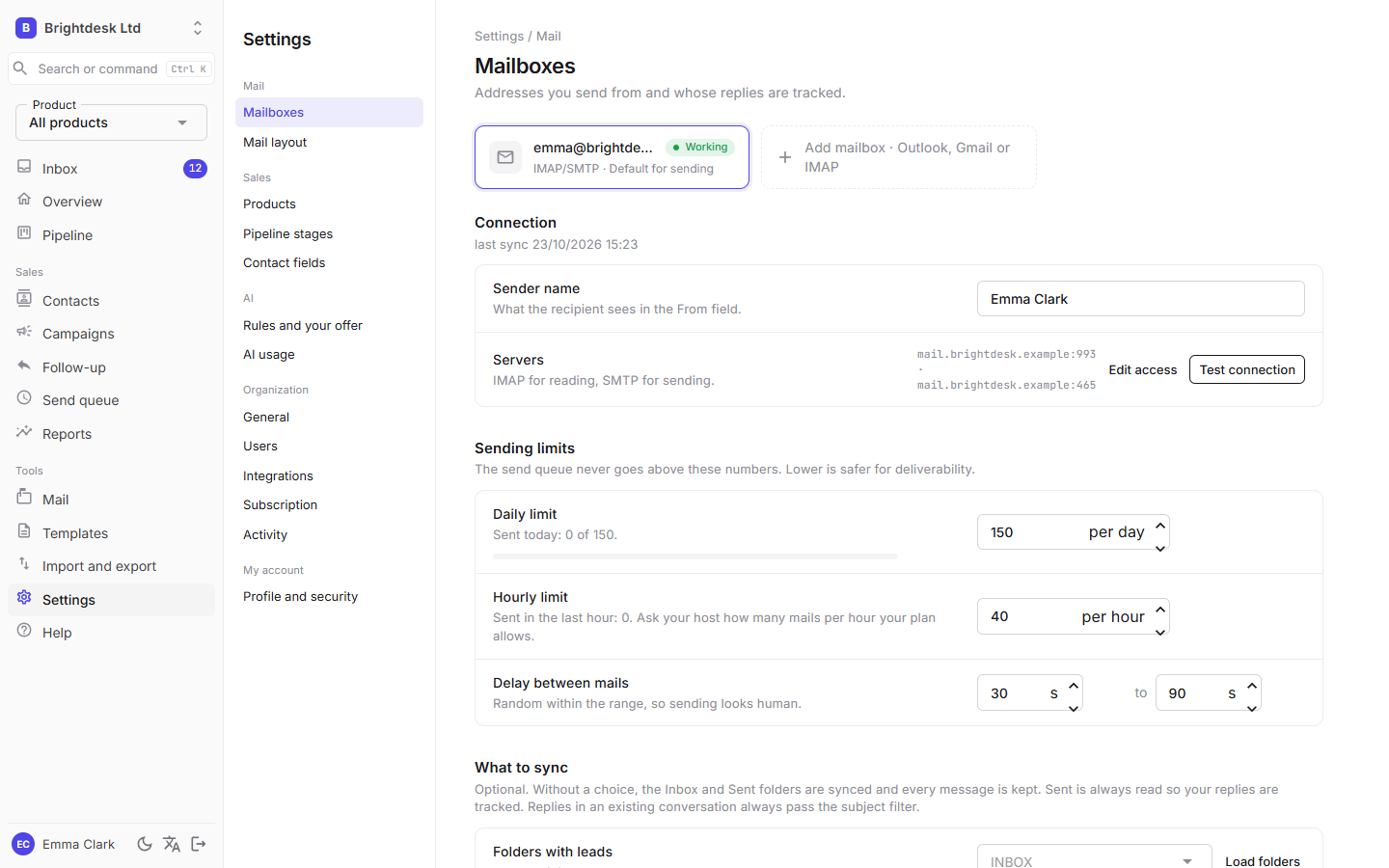
Settings → Mailboxes. An organization can have several mailboxes. At the top are mailbox cards with their state (Working, Needs attention, Sending paused); clicking a card opens its settings. Every mailbox has its own limits, folders and filters, and one is the default for sending.
Outlook / Microsoft 365
Add mailbox → Connect Outlook / Microsoft 365 takes you to Microsoft's sign-in. The app gets permission to read and send that account's mail, and the token is stored encrypted.
IMAP/SMTP
For other servers: Add mailbox → Add IMAP/SMTP mailbox, enter the address, IMAP and SMTP server, user name and password. The password is stored encrypted. Test connection tests both reading and sending.
| Field | Meaning |
|---|---|
| Daily limit / Hourly limit | The most emails the app sends from this mailbox. Protects you from being blocked by your mail provider. Under the daily limit you see how many were sent today. |
| Gap between emails | A random pause between two emails, so sending looks human. |
| Folders: sent | IMAP: where a copy of a sent email is saved. Empty means the standard Sent folder. |
| Folders: bounces and unsubscribes | IMAP: processed bounces and unsubscribes are moved out of the Inbox into these folders, to keep the Inbox clean. With Outlook, messages stay where they are. |
| Product of this mailbox | If the same address is a lead for several products, mail from this mailbox goes to this product. |
Changes are saved with the You have unsaved changes bar at the bottom. If you move to another settings page without saving, the app asks whether to discard them.
What gets synced
Everything here is optional. Without a choice, Inbox and Sent are read and every message is stored. If you also use the mailbox for private or other business mail, narrow it down:
- Folders with leads: click Load folders and pick the folders where you keep sales conversations. Sent is always read, so your replies are visible.
- Subject keywords: only messages whose subject contains one of the words are stored. Part of a word is enough (
offeralso matches "offers"). Replies in an existing conversation always get through. - Known contacts only: messages from addresses that are not contacts are not stored at all.
Mail layout
Settings → Mail layout (owners only). The signature, footer and style added around every email you send: campaigns, follow-ups and replies from the Inbox. Templates and campaigns contain only the text.
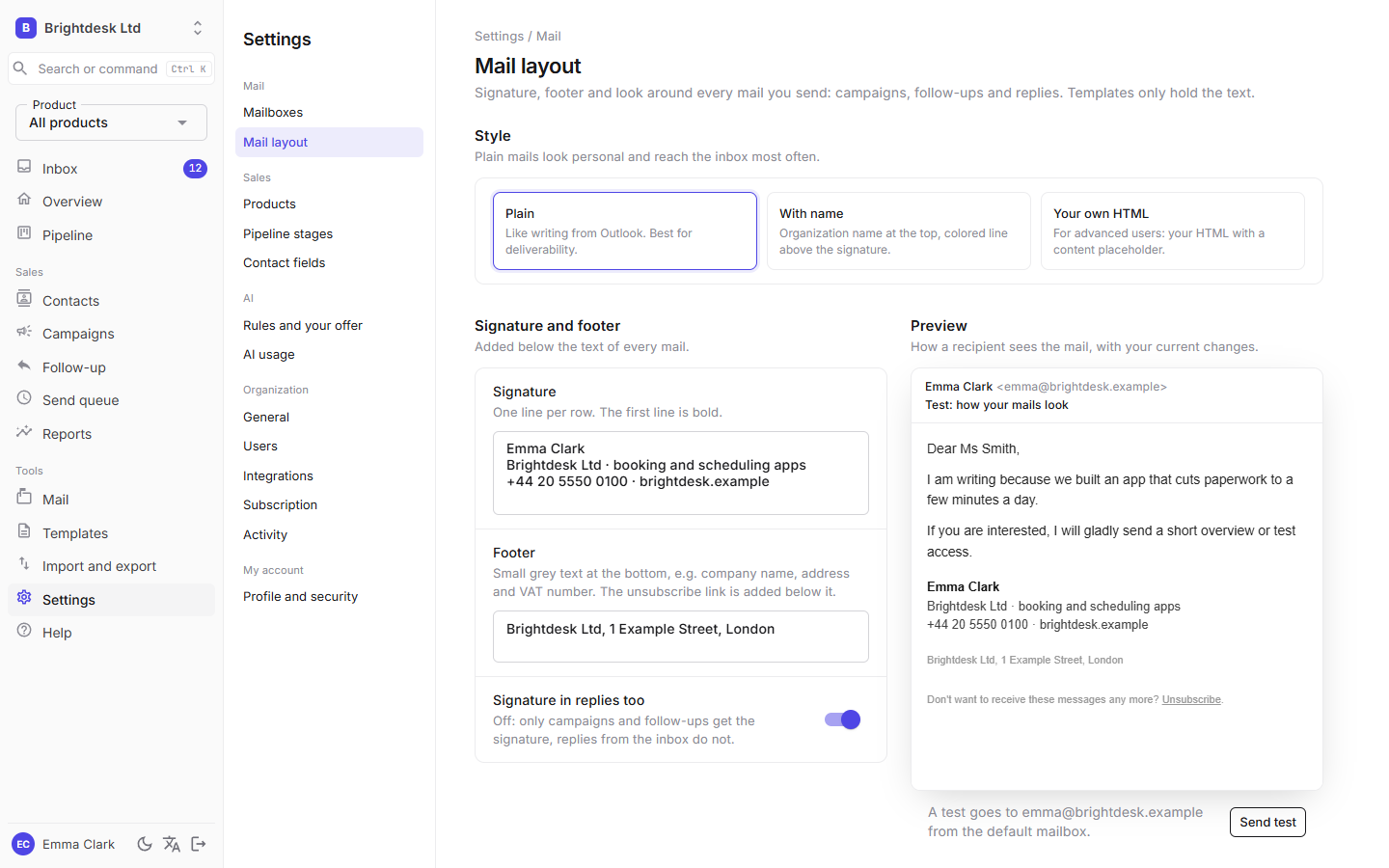
| Setting | Meaning |
|---|---|
| Style | Plain: the email looks like you wrote it in Outlook (recommended, best for landing in the inbox). With name: the organization name in colour at the top and a line above the signature. Custom HTML: the whole HTML of the email, with {Content} where the text, signature and footer go. |
| Signature | Each line on its own row; the first line is bold. |
| Footer | Small grey text at the bottom, for example company name, address and registration number. The unsubscribe link is added below it. |
| Signature in replies too | Off: only campaigns and follow-ups get the signature, replies from the Inbox do not. |
The preview on the right shows the email with changes you have not saved yet. Send a test sends a test email to your address from the default mailbox, with the saved settings. The contact's history keeps only your text, without the signature.
Products
Settings → Products (owners only). If you sell more than one product, add them here. Each product has its own description for AI, so AI knows what a conversation is about when it classifies replies and writes drafts.
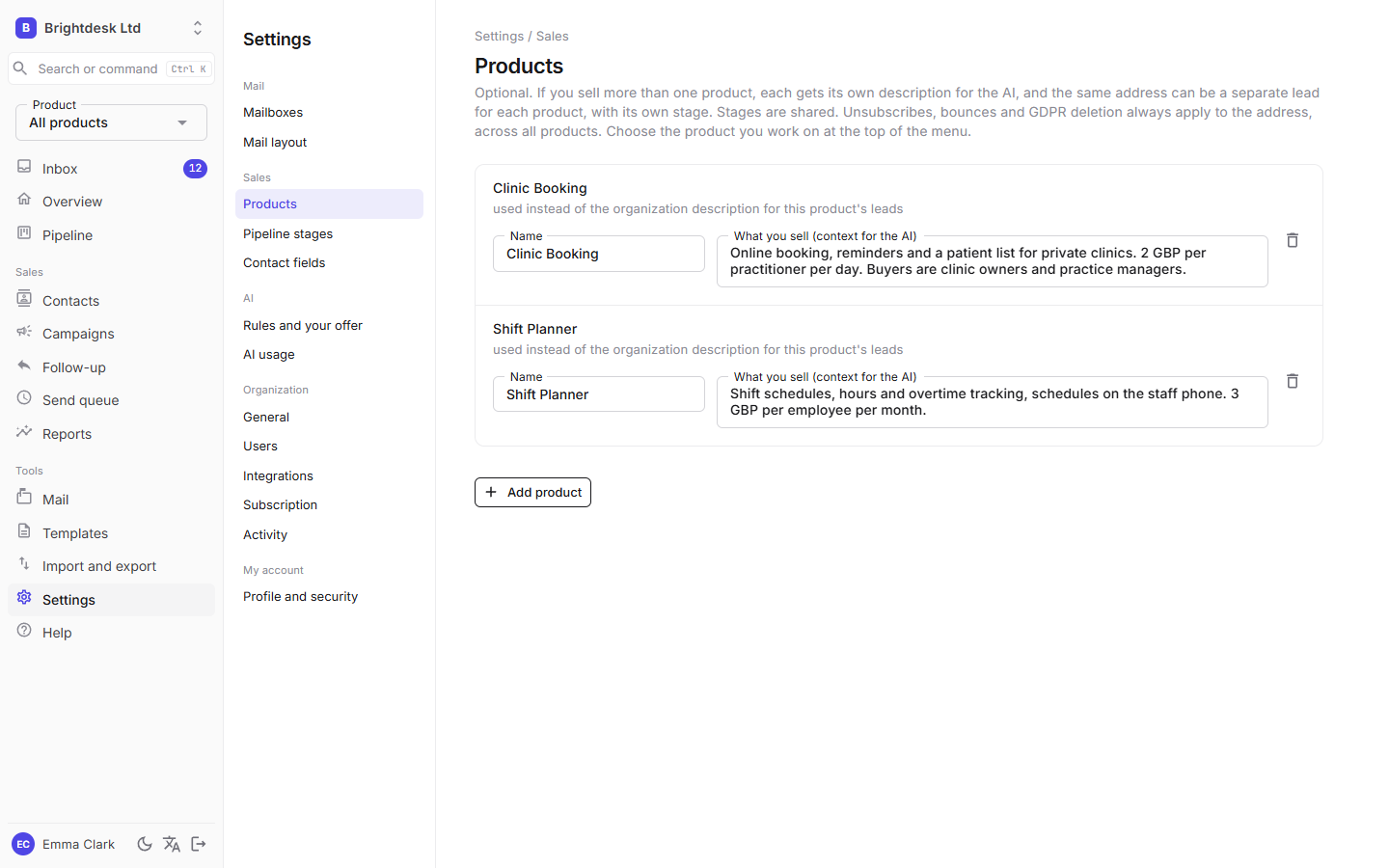
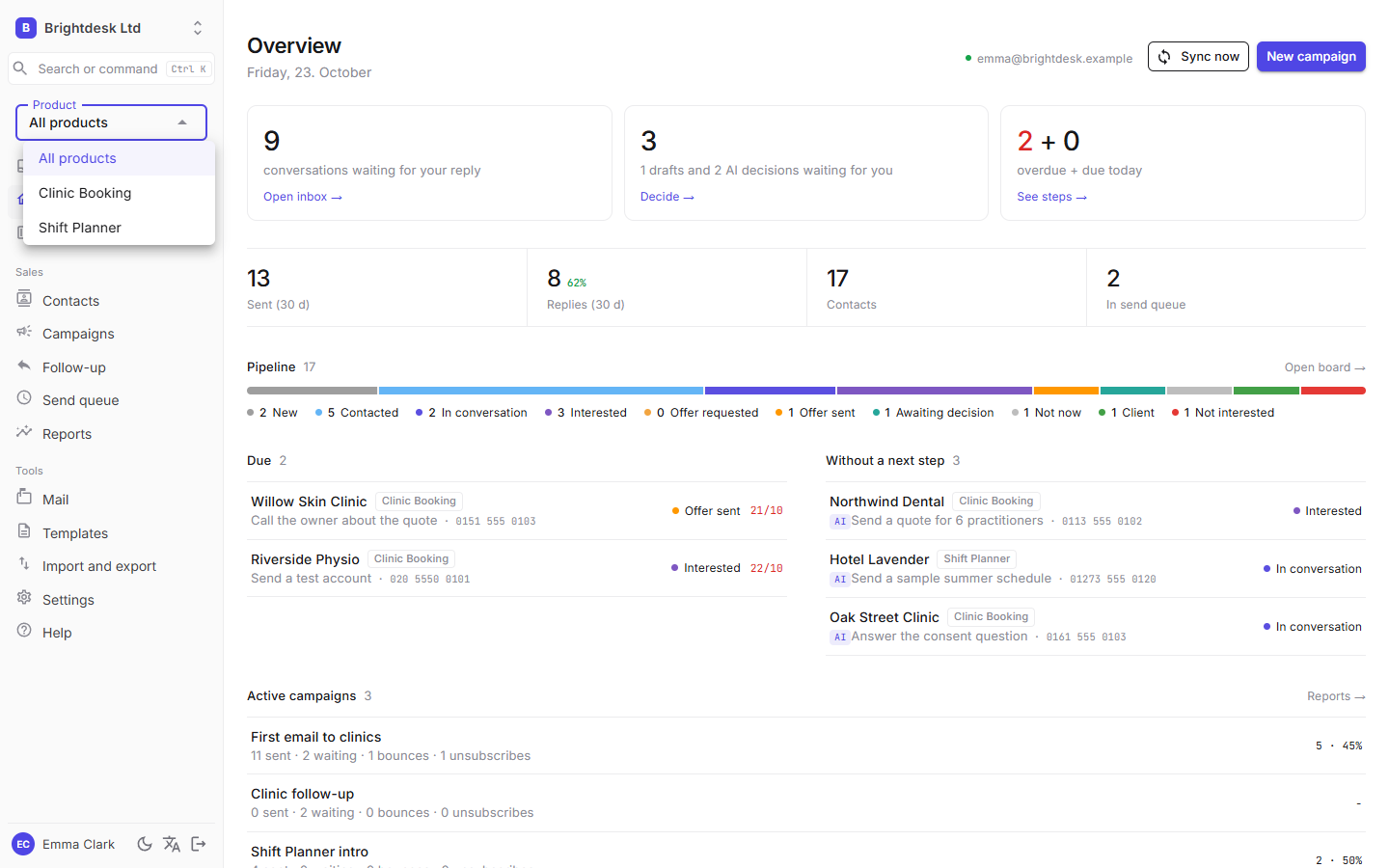
Choose the product you are working on at the top of the menu. Overview, Inbox, Follow-ups, Pipeline, Contacts and Campaigns then show only that product. New contacts, campaigns and imports get the chosen product.
- The same address can be a separate lead for each product, with its own stage and next step. The same company can be a "Client" for one product and "New" for another.
- Stages are shared by all products.
- Unsubscribes, bounces and GDPR erasure always apply to the address, in every product.
- A campaign without a product sends each address only one email, even if the address is a lead for several products.
- A product that still has contacts or campaigns cannot be deleted.
AI and your offer
Settings → Rules and offer (owners only).
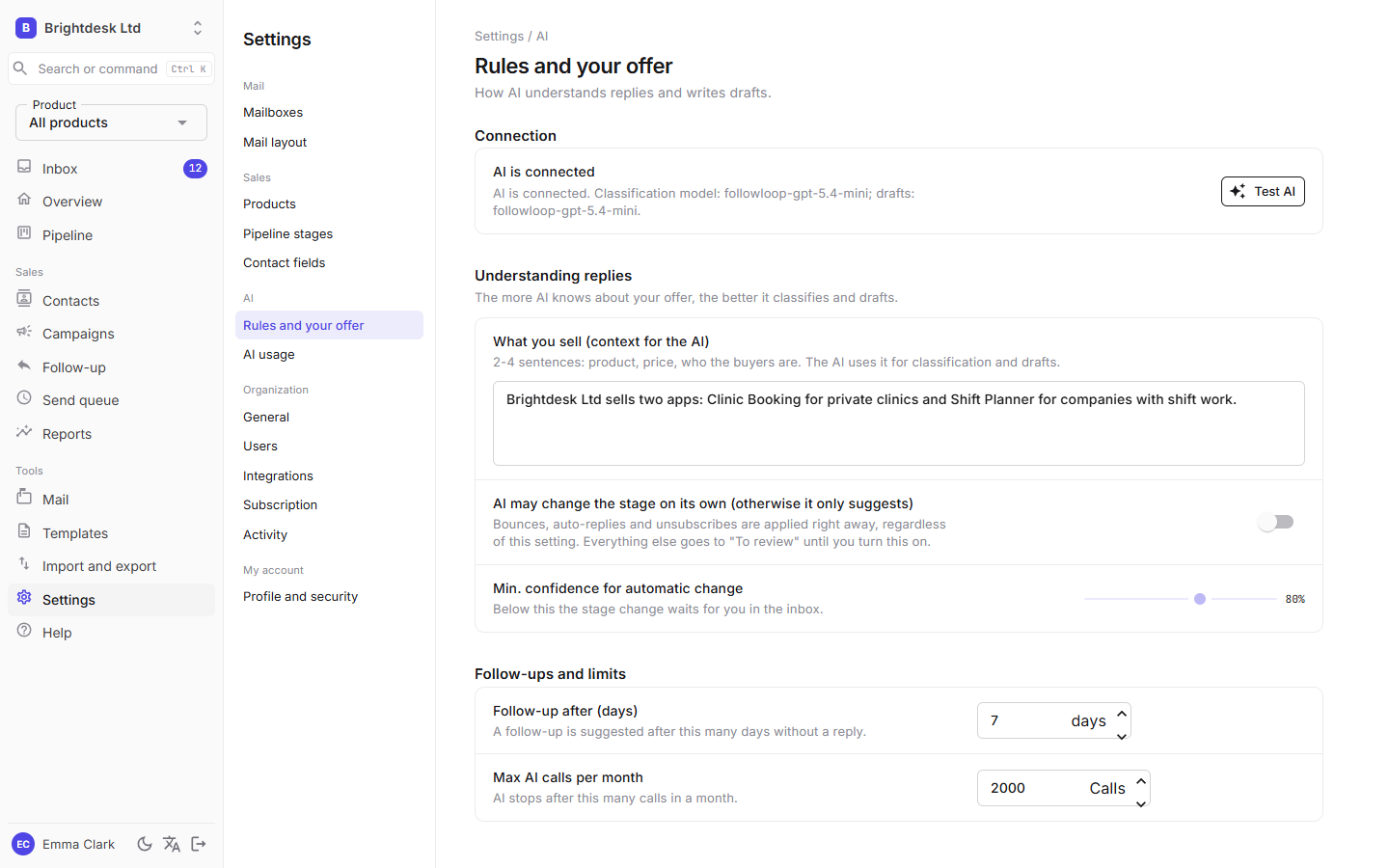
| Setting | Meaning |
|---|---|
| Connection | Shows whether AI is connected and which models are used. Test AI classifies a sample reply and shows the stage and summary. |
| What you sell | 2-4 sentences: product, price, who the customers are. Used when a contact has no product or the product has no description. |
| AI may change the stage itself | Off: AI only suggests, and the suggestion goes to Inbox → To review. On: AI changes the stage itself when its confidence is above the threshold. |
| Minimum confidence | Threshold for changing the stage on its own, from 50 to 100%. |
| Follow-up after | How many days without a reply before a lead shows up in the follow-up list. |
| AI calls per month | A spending cap. Once reached, AI is not called until next month, and the rules keep working. |
General
Settings → General (owners only).
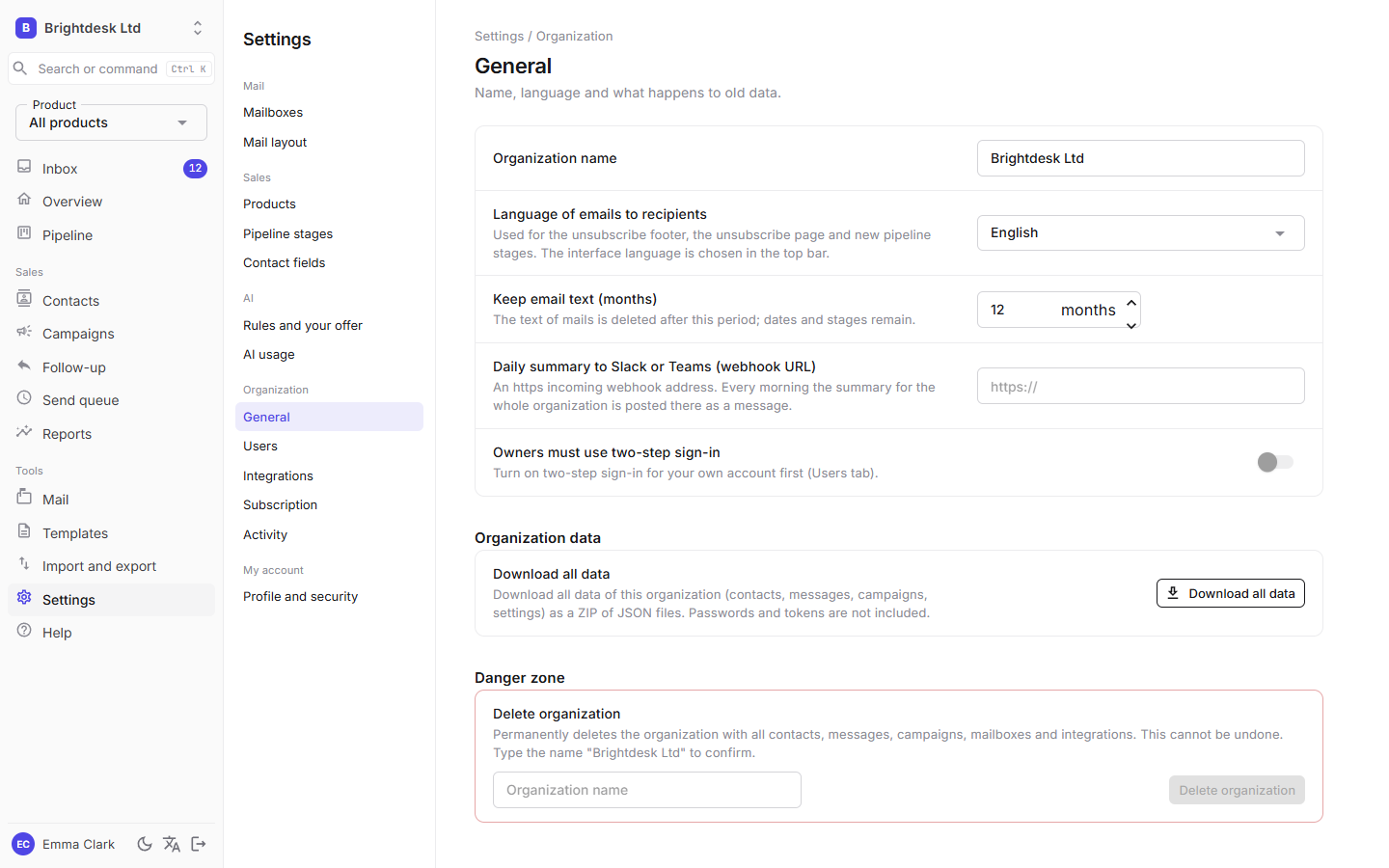
| Setting | Meaning |
|---|---|
| Language of emails to recipients | The language of the unsubscribe footer, the unsubscribe page, texts the system writes into history and the stages of a new organization. Independent of the interface language. |
| Email text retention | After this period the text of messages is deleted; only the date, subject and link to the contact remain. |
| Daily digest to Slack or Teams | The incoming webhook address. See Daily digest. |
| Owners must use two-step sign-in | See Security and activity. |
| Automatically admit colleagues from the same Microsoft 365 organization | Shown when the organization was created with a Microsoft 365 work account. Off by default. |
| Organization data, Danger zone | Export of all data and deletion of the organization. See GDPR and privacy. |
Stages and fields
Settings → Pipeline stages (owners only). The default stages fit a typical B2B sale. You can rename them, change their order, colour (click the colour square) and description, or add new ones. The description helps AI recognise where a conversation is. A stage's key does not change after it is added.
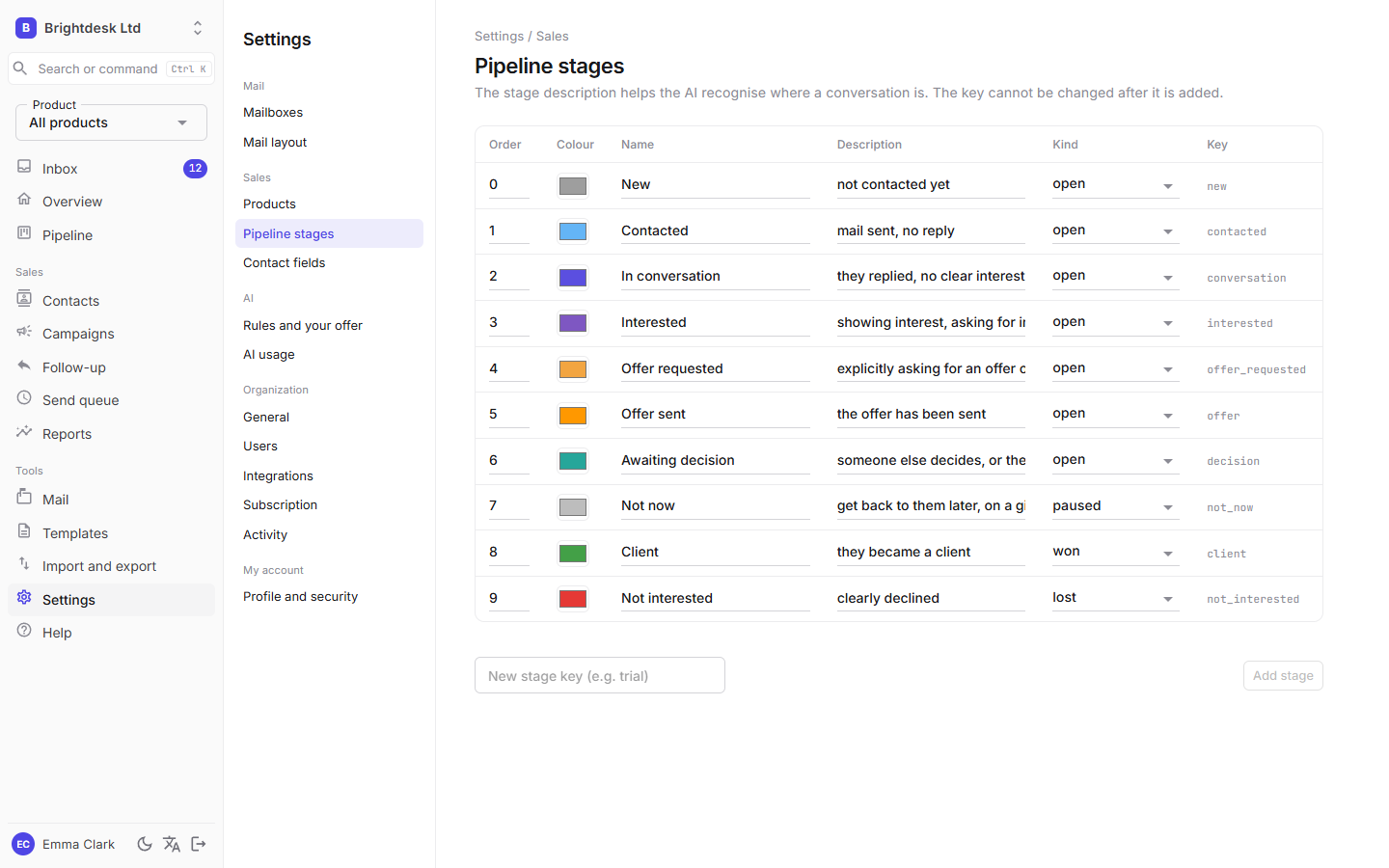
The type of a stage decides its behaviour: open (the lead is alive), on hold ("not now" until a date), won (client) and lost. Default stages you have not renamed are shown in the interface language.
Settings → Contact fields: extra fields on the contact card (for example company size, website, industry).
Overview
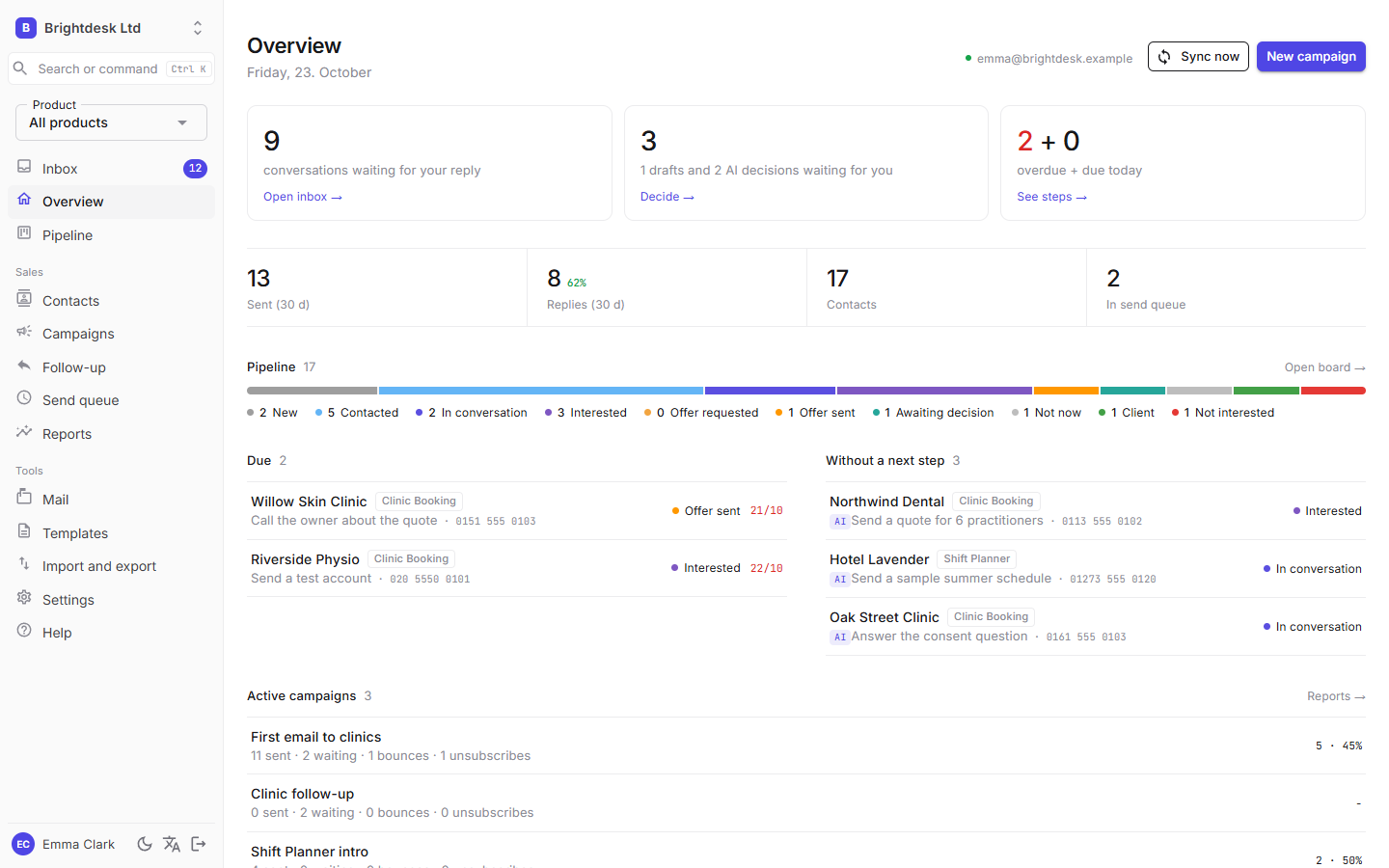
- Getting started: until the organization is set up, a four-step checklist (mailbox, offer description, contacts, first campaign) with progress is at the top. It disappears when everything is done.
- Three cards at the top: how many conversations wait for your reply, how many drafts and AI decisions wait for you, and how many steps are late or due today. Clicking leads to the Inbox or the list of steps.
- Numbers: sent and replies in 30 days (with the reply rate), the number of contacts and emails in the sending queue.
- Pipeline: one bar with the share of each stage, and the number of leads per stage below. Clicking a stage leads to the contacts in it.
- Due: agreed steps for today and overdue ones (red date).
- No next step: interested leads without a plan, with an AI suggestion next to them.
- Active campaigns: how many were sent, how many wait, bounces, unsubscribes and replies within 14 days of sending.
- A green dot next to a mailbox address means the last sync worked. Red means an error; hover to see which.
Search and commands (Ctrl K)
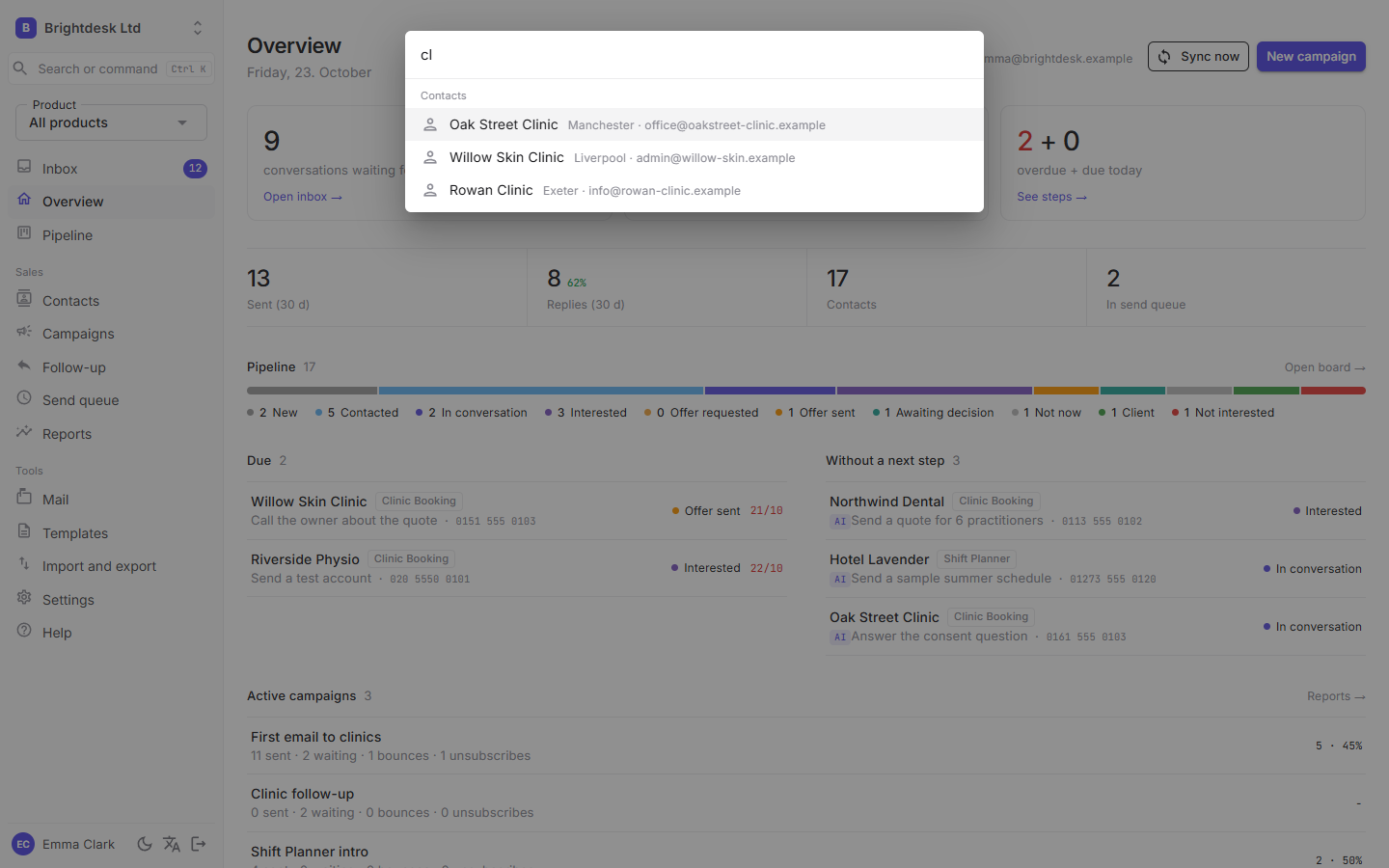
Ctrl K (Cmd K on a Mac) or the Search or command field in the menu opens search from any page: contacts by name, address and city, and commands such as "New campaign", "New contact" or "Go to Pipeline". Use the arrow keys to choose, Enter to open.
Inbox
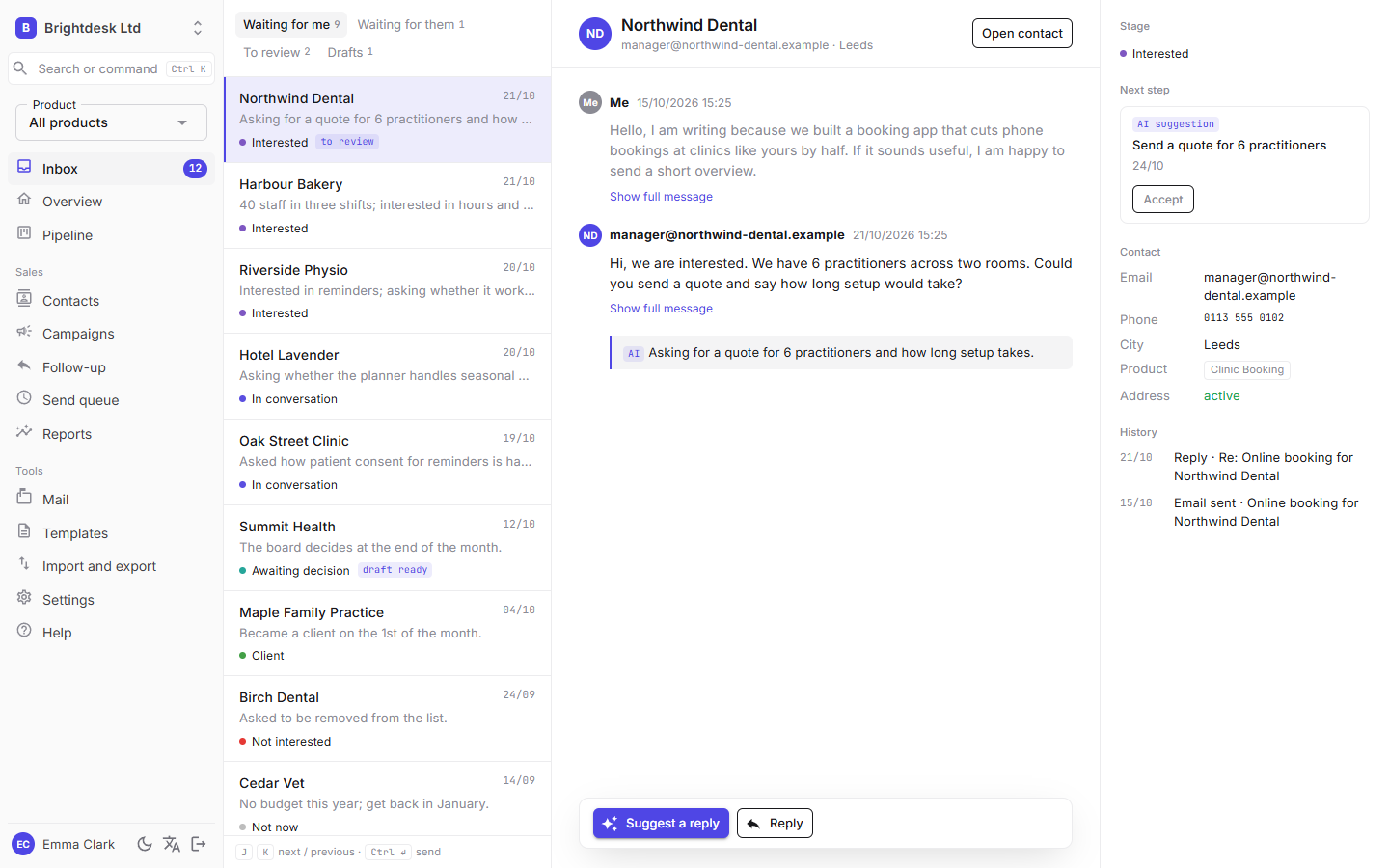
The main screen for daily work. The list is on the left, the conversation in the middle, and the stage, next step, contact details and history on the right.
| Tab | What is in it |
|---|---|
| Waiting for me | Contacts who wrote last. Each has an AI summary and a tag if a draft is ready or needs review. The AI also marks urgent messages, the tone (a green or red dot) and topics such as price, deadline, competitor or complaint; filter by them with one click above the list. |
| Waiting for them | Conversations where you wrote last, with the number of silent days (red after 14 days). |
| To review | Everything the app must not decide alone (see below). |
| Drafts | Follow-up drafts and replies waiting to be sent. |
Replying
- Choose a conversation. Under the messages click Suggest a reply (AI drafts an answer to the contact's last email) or Reply (an empty draft).
- Edit the draft in place. AI answers questions only with facts from the product description and the conversation. What it does not know (a price, a date) it leaves in square brackets, for example
[price]. - Send (or Ctrl+Enter) puts the email in the sending queue as a reply in the same conversation, from the mailbox the conversation went through. While it waits you can cancel it in the Sending queue. Discard deletes the draft.
On the right, next to Next step, is the AI suggestion. Accept makes it the agreed step. J and K on the keyboard move to the next and previous conversation.
Full email and attachments
A conversation shows only your text and theirs, without quotes and signatures, because the app keeps at most 2,000 characters of each email. Under every message is Show full message: the original email is then fetched directly from your mail server, with formatting, images and attachments, and is not stored in the app. Click an attachment's name to download it.
Images from the internet are hidden at first, so the sender cannot tell when you opened the email. Show images loads them for that email. If the email was deleted or moved to a folder that is not synced, the app says it is no longer on the server. The same works on the contact card and in Mail.
To review
This is where everything ends up that the app must not decide alone:
- AI stage suggestions (while automatic changes are off);
- a bounce for a lead who is already in a conversation (it may be a temporary error);
- an unsubscribe from a client;
- an unsubscribe or bounce that was matched to the contact only by the domain (for example a colleague of the contact);
- an auto-reply that mentions a new address (for example "please contact my colleague at...").
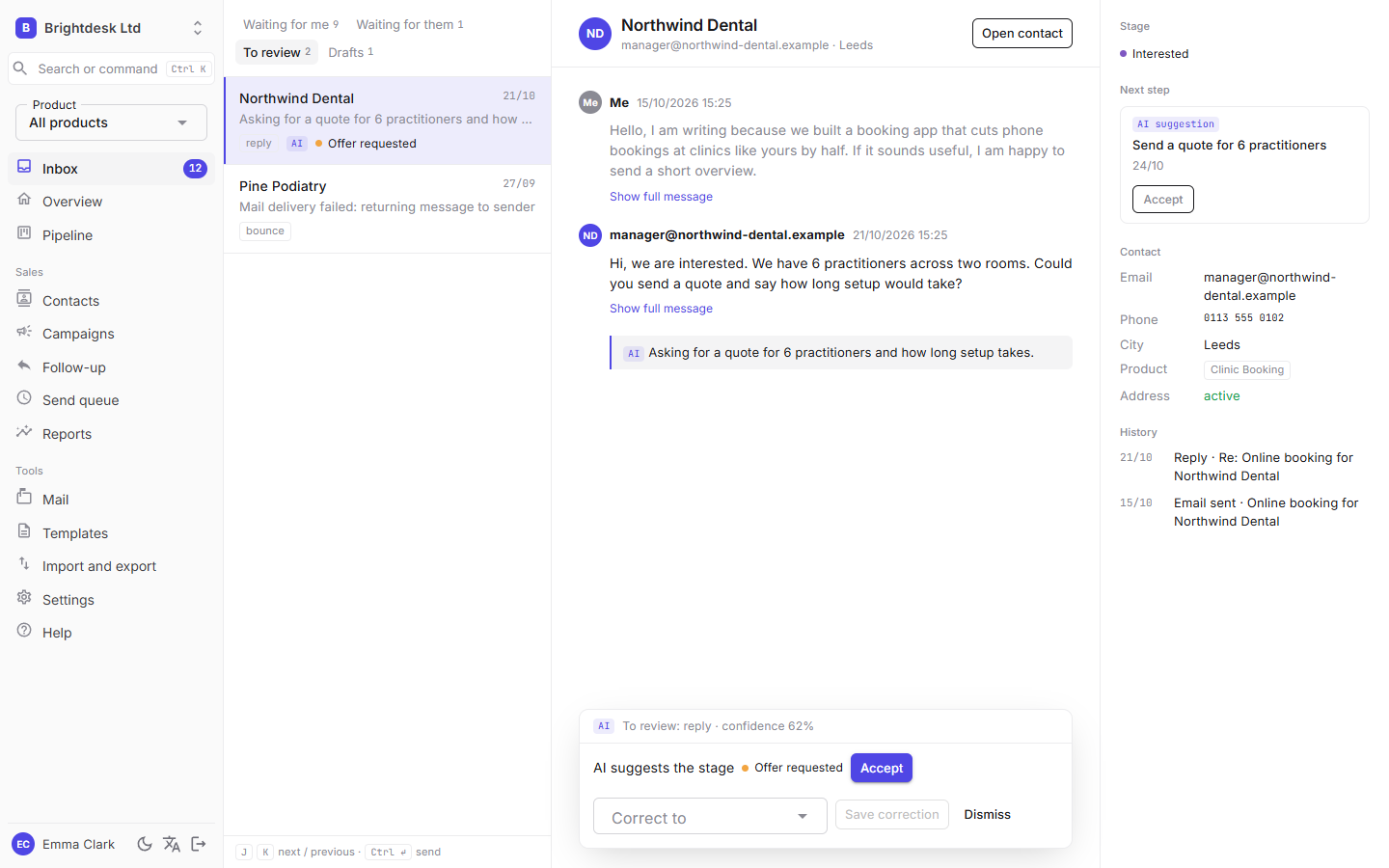
Accept applies the suggestion, Correct to with a stage and Save correction sets a different stage, and Dismiss just removes the item. Every correction is remembered and used to measure AI accuracy.
Follow-ups
A list of leads you wrote to who have not replied after the set number of days. With AI, every 6 hours (or with the Create AI drafts button) the app writes a draft in your style, based on your recent manual emails.
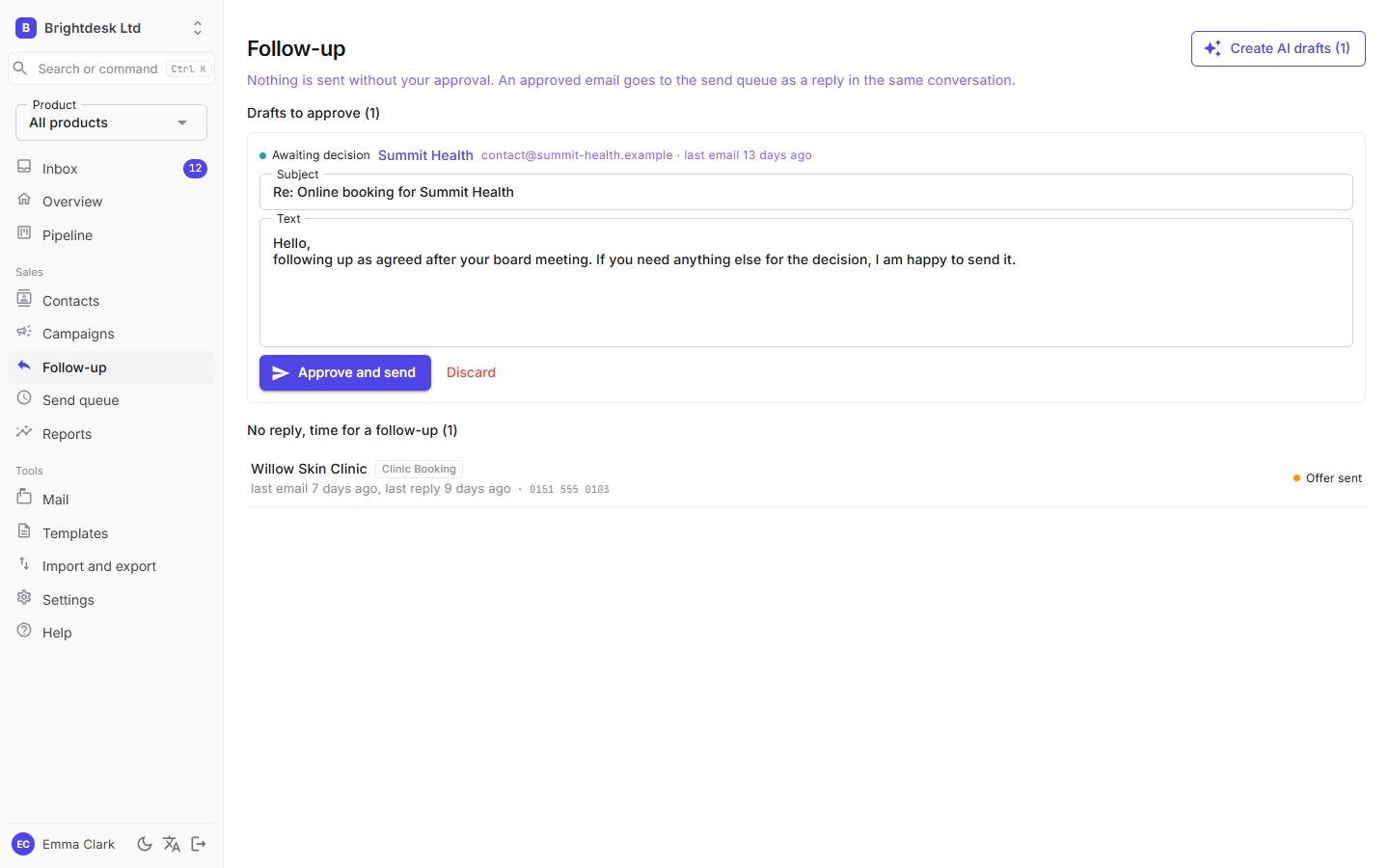
Edit and send drafts here or in Inbox → Drafts. Sending puts them in the sending queue as a reply in the same conversation; Discard deletes them. Without AI you write drafts yourself.
Reports
Which email works and which doesn't, for the chosen product and period (30, 90, 365 days or everything).
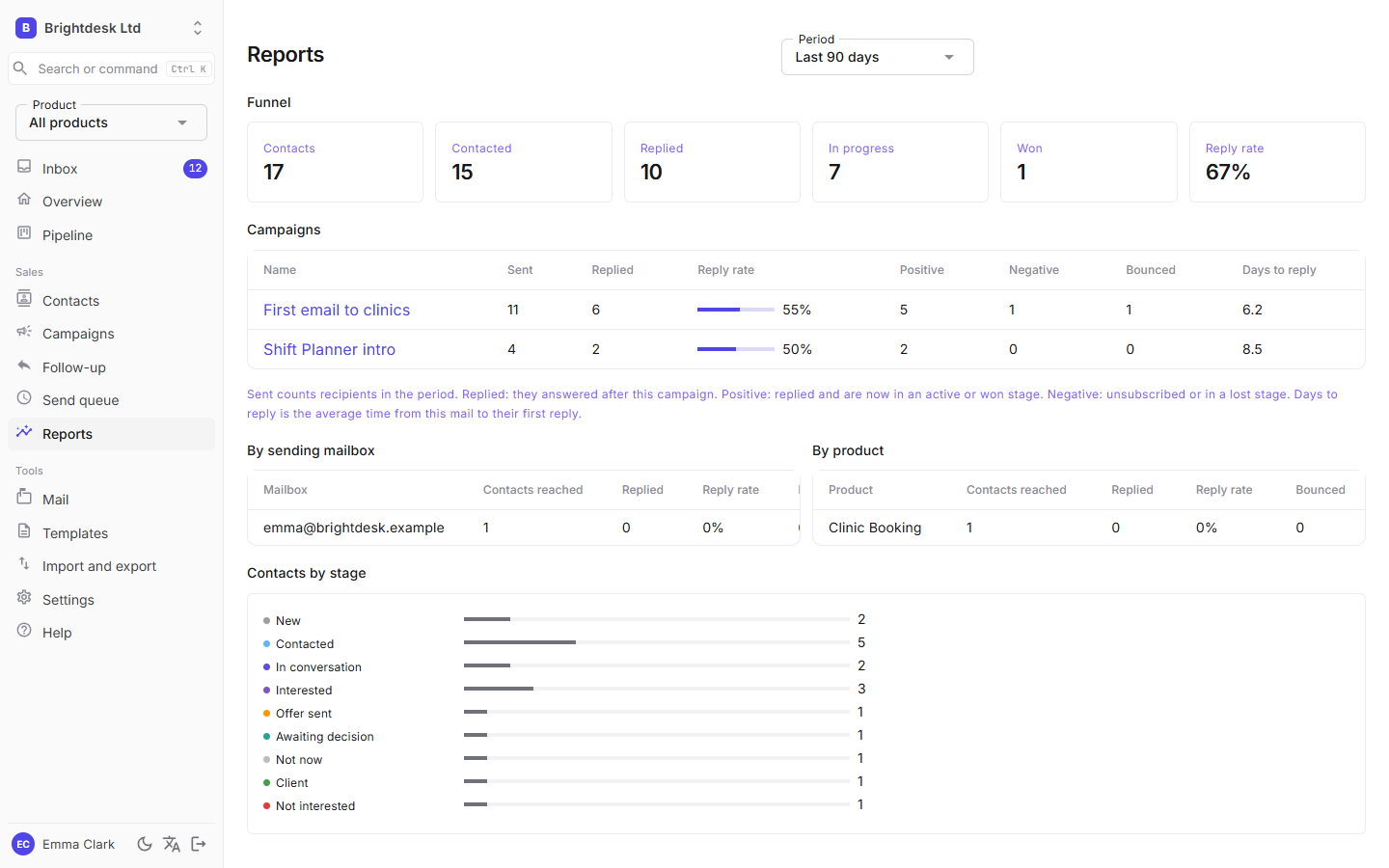
| Column | Meaning |
|---|---|
| Sent | How many contacts received the campaign in the period. |
| Replied | How many of them wrote back after that campaign. |
| Positive | They replied and are now in an active or won stage (for example Interested, Offer, Client). |
| Negative | They unsubscribed or are in a lost stage. |
| Days to reply | Average time from the campaign to the first reply. |
The funnel at the top shows how many contacts were reached, how many replied, how many are in progress and how many were won.
Below the campaigns are two tables: By sending mailbox and By product (when a single product is not selected). For each mailbox or product you see how many contacts got at least one email from the queue, how many of them replied and how many bounced. That shows which sender or client gets a better response.
Pipeline
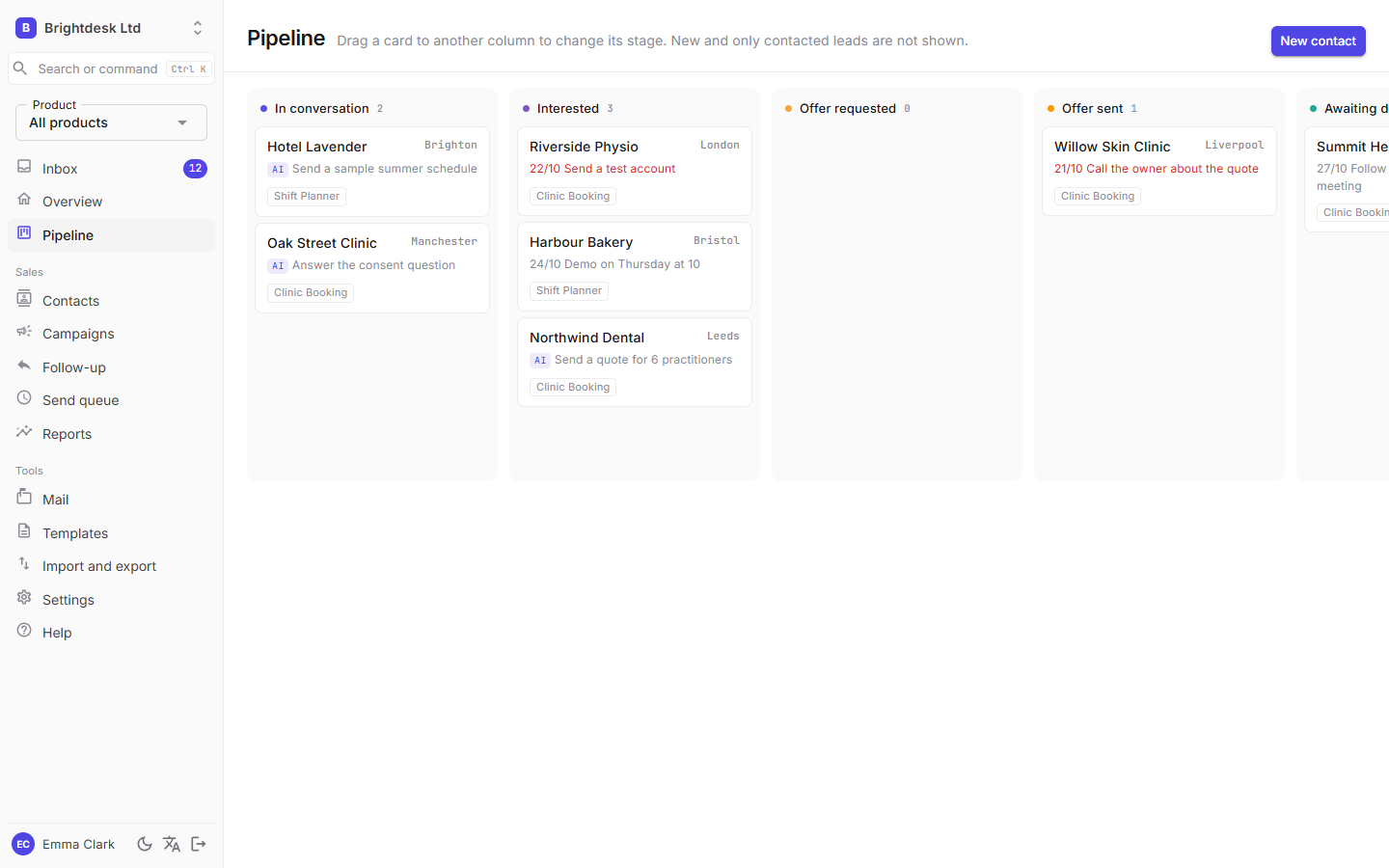
A board of active leads. Drag a card to another column to change its stage. New and only contacted leads are not shown, to keep the board clear.
Contacts
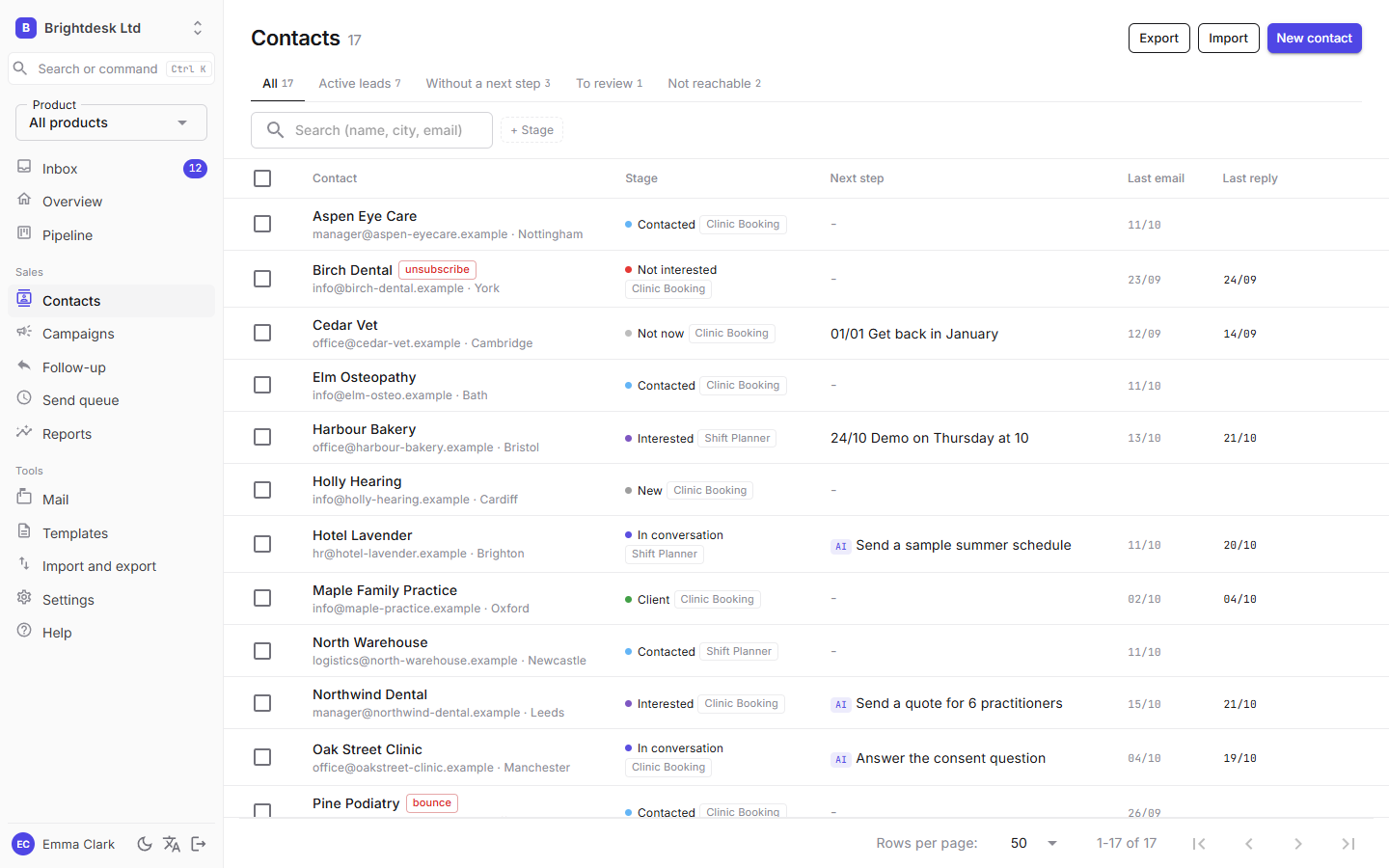
- Views above the table: All, Active leads, No next step, To review and Unreachable (bounced, unsubscribed or excluded), each with its count.
- Search by name, city and address, and filters by stage (several at once) and segment. Clear filters shows everything again.
- Click a name to open the contact card. When you hover a row, buttons for the Inbox conversation and the contact card appear on the right.
- Sort by clicking a column header.
Bulk actions
Tick contacts (or all on the page with the box in the header). A bar appears above the table:
- Change stage: every change is written to the contact's history and remembered as a correction for AI, just like changing one contact.
- Set segment: type a new segment or pick an existing one.
- Exclude from sending: the contacts no longer get campaign emails. You can include them again on the contact card.
Bulk actions change only the chosen field on the current data, so an unsubscribe or bounce that arrived in the meantime is kept.
Export and Import at the top right lead to the CSV export and to Import and export.
Contact card
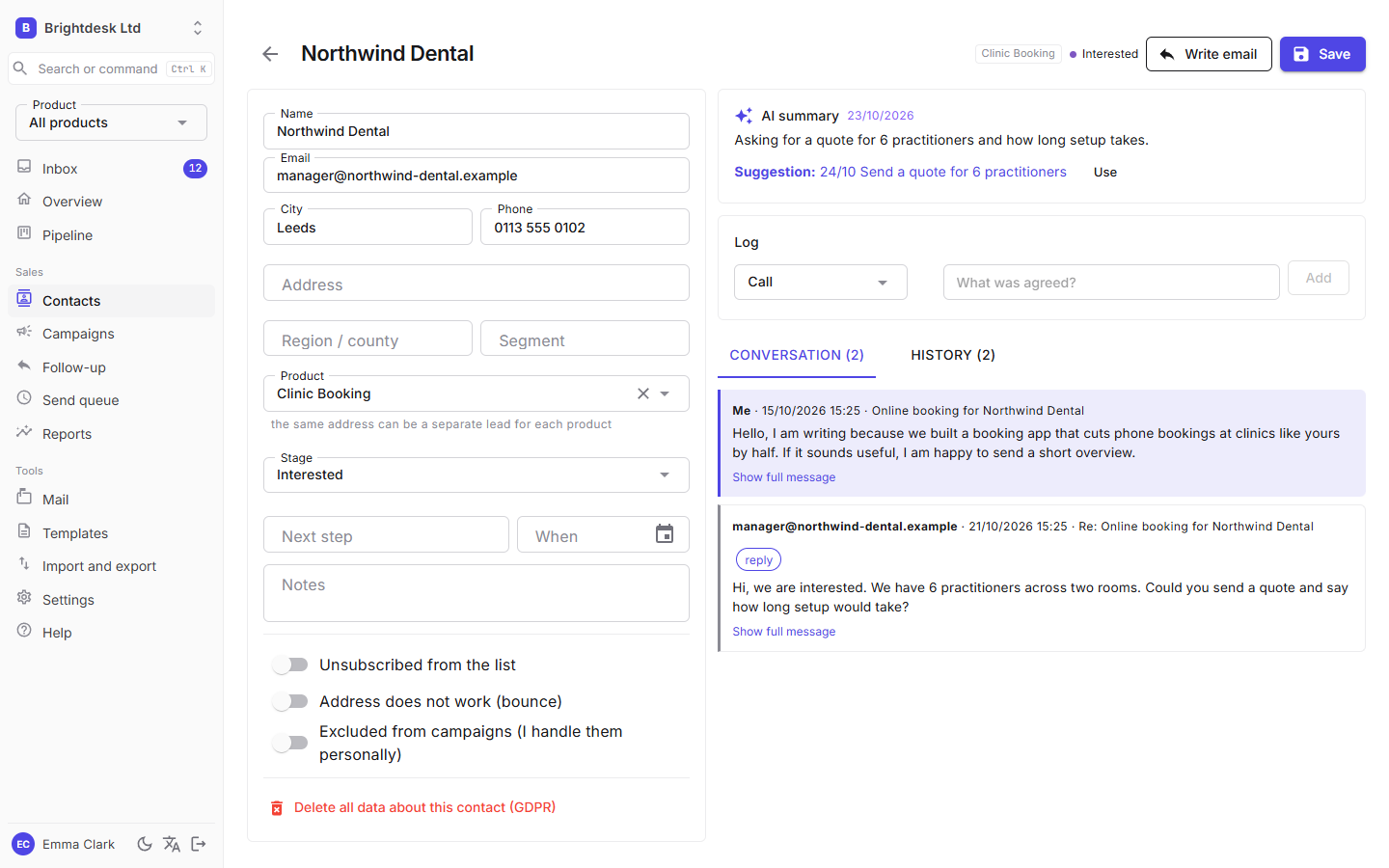
- On the left: details, product, stage, next step, notes and the address state (unsubscribed, bounced, excluded from campaigns).
- On the right: the AI summary, quick logging of a call or meeting outside email, the whole conversation and the history of events.
- Write an email opens a draft in Inbox → Drafts. If a draft for the contact is already waiting, it opens that one.
- Use Excluded from campaigns for leads you handle personally: they will not get any campaign email.
- Delete all data (GDPR) permanently deletes the contact, its messages and history for that address in every product (a member limited to some products deletes only in theirs). The address stays blocked, so a later import does not add it again.
Campaigns
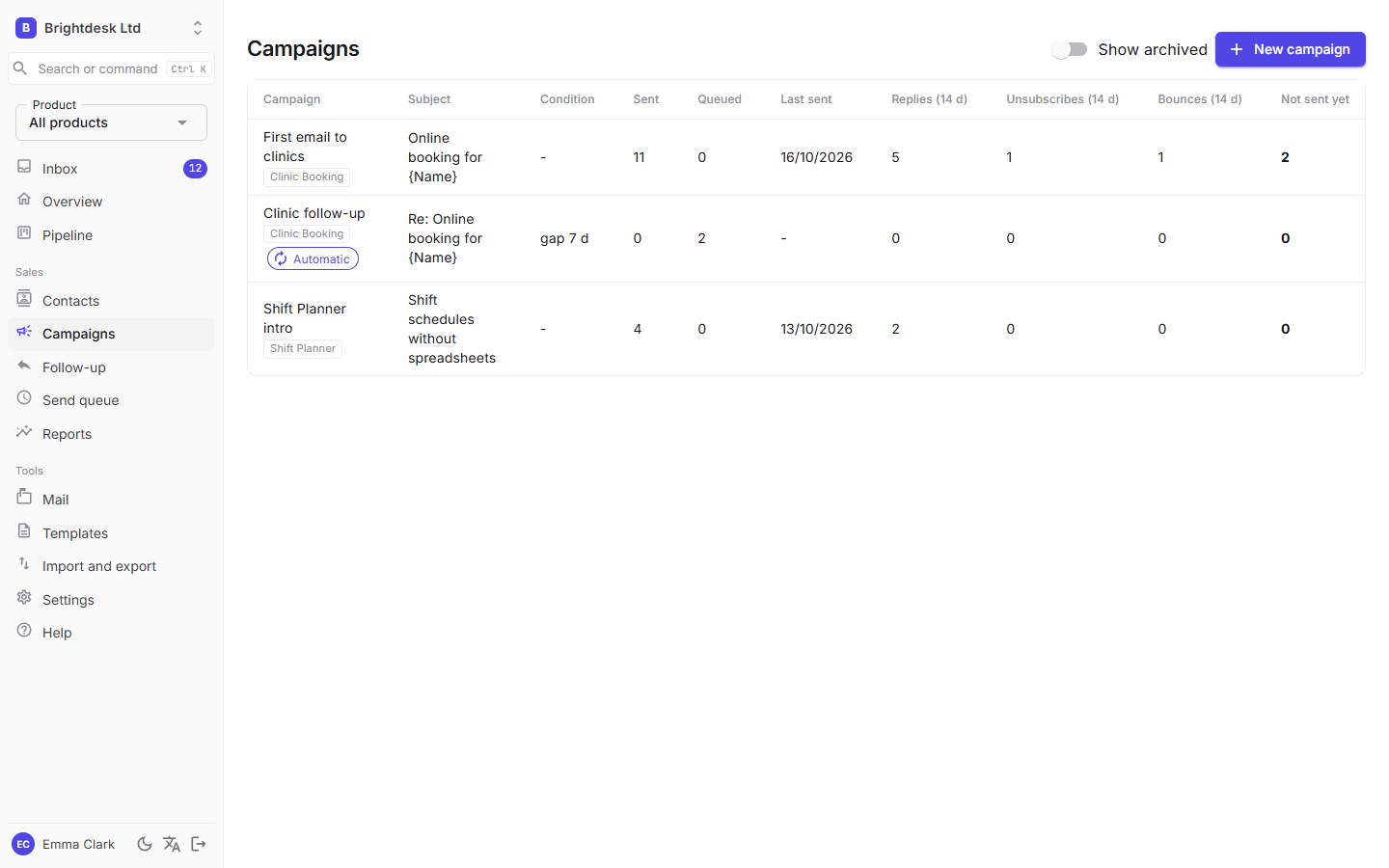
A campaign is one email to a group of contacts, for example "First email", "Follow-up 1", "Offer".
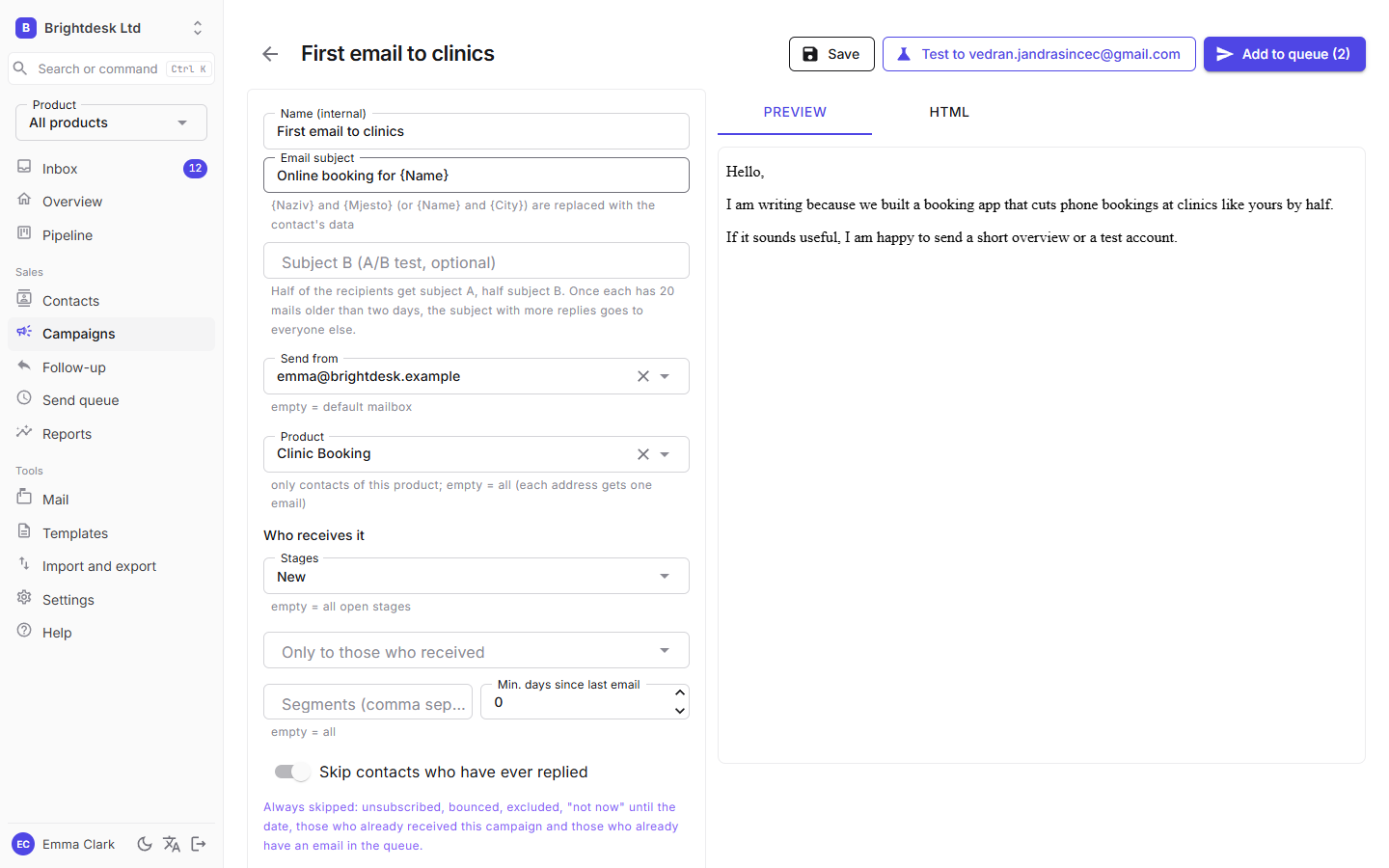
- Enter a name and subject.
{Name}and{City}are replaced with the contact's details. - Choose a mailbox (empty is the default) and a product (empty is all).
- Define the audience: stages, "only those who got" a previous campaign, segments and the minimum gap since the last email. The list of recipients updates right away.
- Write the text in the HTML tab. Don't add the signature and footer here, set them once in Mail layout. If the text contains
{UnsubscribeUrl}, the unsubscribe link goes there; otherwise a footer with the link is added automatically. - Test to ... sends a test email to you.
- Queue puts the emails in the sending queue. Before that, the app shows how many addresses and with which limits.
A/B subject test. Also enter Subject B. Recipients are split evenly between subject A and subject B, also across runs of an automatic campaign. When both have at least 20 sent emails older than two days, the app picks the subject with the higher reply rate, and it goes to all further recipients (also in a sequence). Under the subjects you see sent, measured and replied per subject, and the winner is marked. Changing either subject restarts the test.
Send at the best time. The email waits in the queue until the hour this contact usually replies (needs at least two of their replies). Otherwise the hour when the whole organization gets the most replies is used (at least 10). Otherwise the email goes out right away. The queue shows "Waiting until …".
Sequences
A sequence is a series of campaigns that run by themselves: step 1 to all new contacts, step 2 a few days later to those who did not reply, and so on.
- Create the campaign for step 1: stage "New", choose a mailbox and turn on Send automatically (sequence).
- Create step 2: Only those who got step 1, stage "Contacted", a gap of for example 5 days since the last email, with Skip contacts who have ever replied and Send automatically on.
- The same for step 3. Automatic campaigns are tagged "Automatic" in the campaign list.
- Every hour the app queues new recipients who meet the conditions. Sending still respects the mailbox limits.
- When a contact replies, a queued email of a campaign with Skip contacts who have ever replied is cancelled for them.
- New contacts from imports or mail enter step 1 by themselves. If you don't want that, keep step 1 manual (without Send automatically).
- Stop a sequence by switching it off or archiving the campaign.
Sending queue and limits
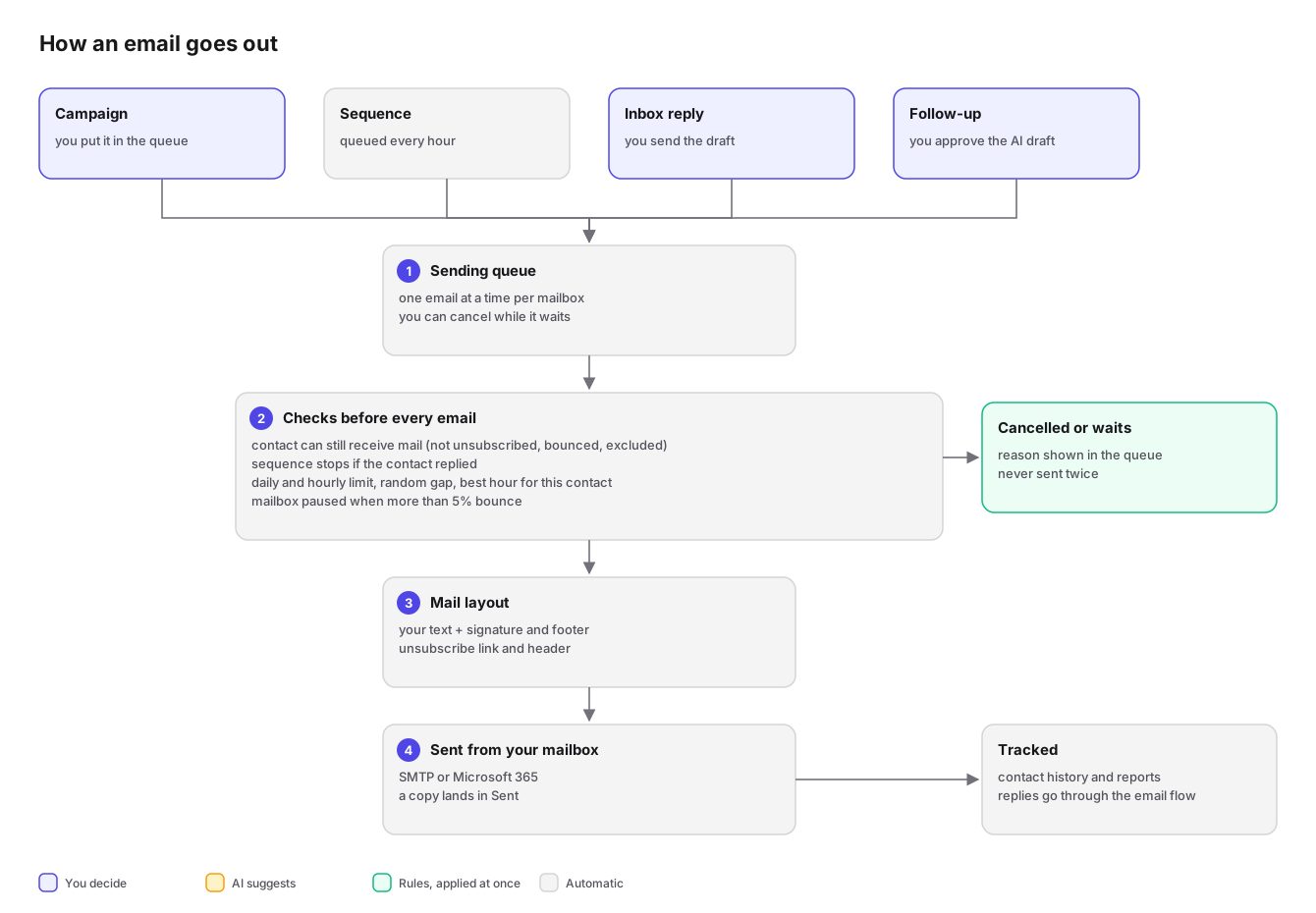
Every email, whether from a campaign, a follow-up or a reply from the Inbox, goes through the queue. A background job sends them one at a time and respects the mailbox's daily and hourly limits and a random gap.
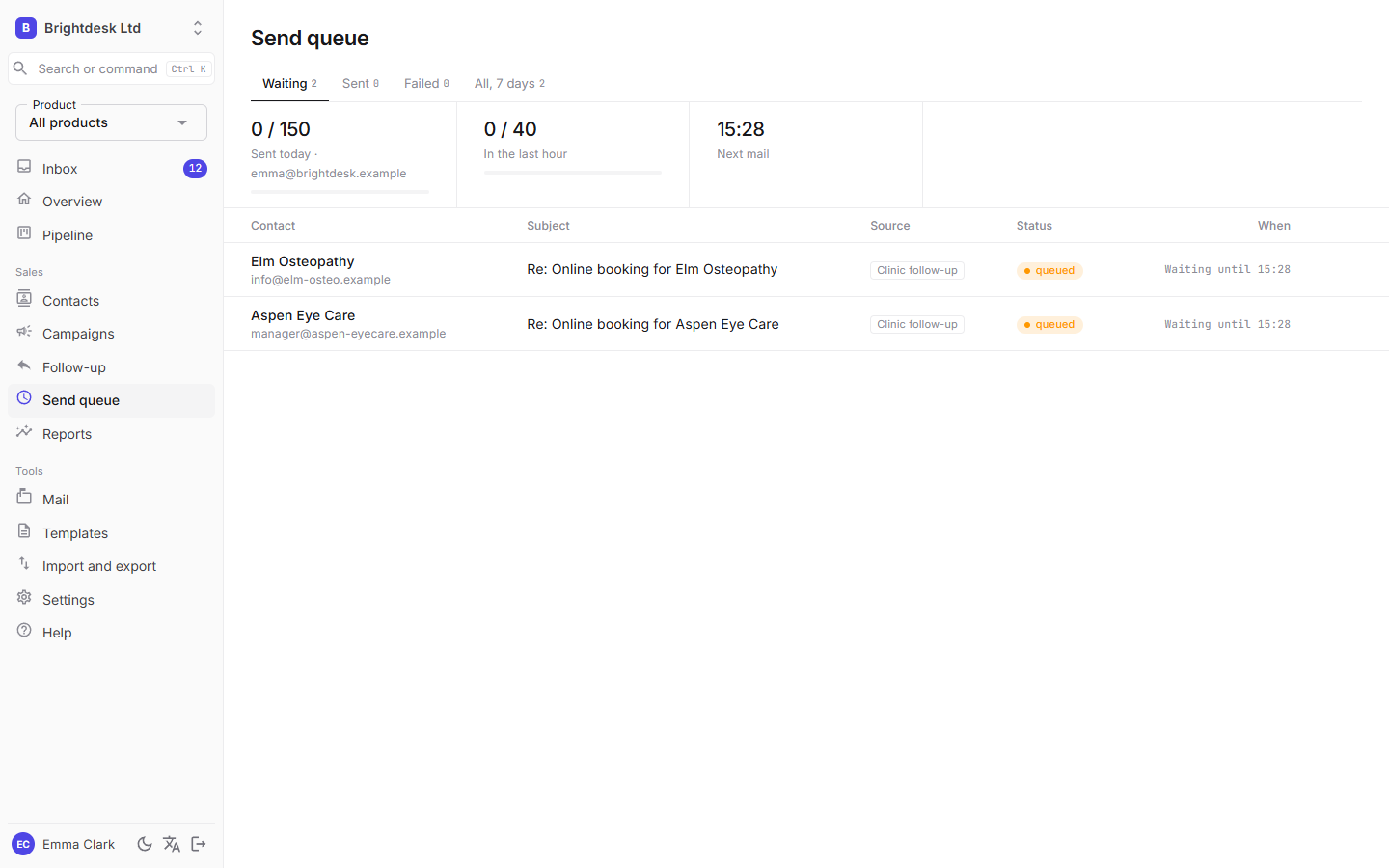
Above the table, for each mailbox, you see how many were sent today and in the last hour against the limit, and when the next email goes. The tabs Waiting, Sent, Failed and All show emails from the last 7 days.
- If a contact unsubscribes or their address stops working in the meantime, the email is cancelled automatically.
- A failed send is retried up to three times, 5 minutes apart.
- An email that went out is never sent again, not even when saving it to Sent fails afterwards.
- Cancel a single email with the button that appears when you hover the row, or a whole campaign on the campaign page, while it waits.
- If too many emails bounce (more than 5% of at least 20 sent in the last two weeks), sending from that mailbox stops. See Deliverability.
Deliverability
Deliverability means your emails land in the inbox, not in spam.
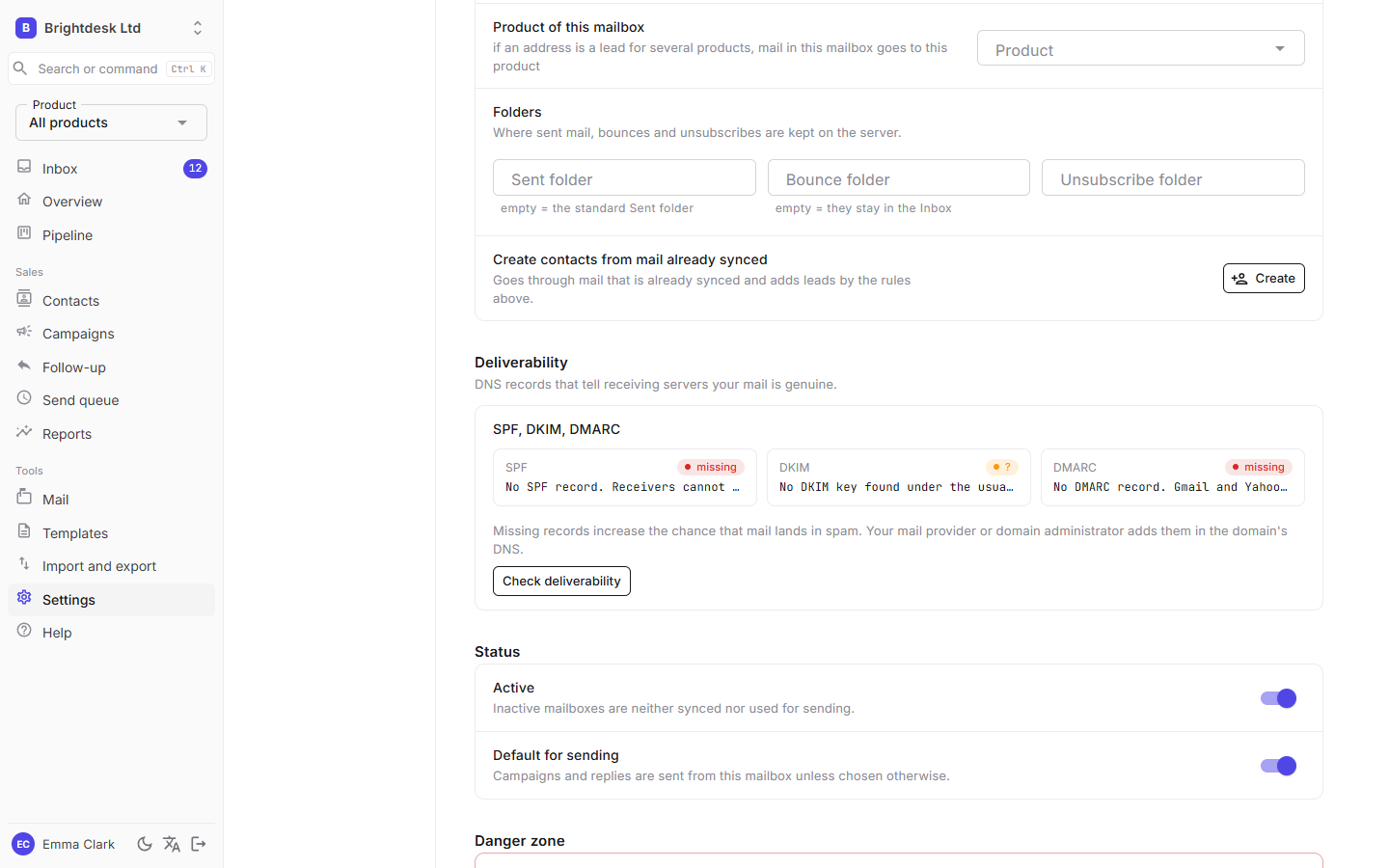
Settings → Mailboxes → Check deliverability checks three DNS records of the domain you send from:
| Record | What it means | If it is missing |
|---|---|---|
| SPF | Which servers may send for the domain. | Emails go to spam more often. |
| DKIM | A digital signature on emails. Common selectors (Microsoft 365, Google and others) are checked. | Yellow means it was not found under a common name. It may exist under another one; ask your mail provider. |
| DMARC | A rule for what the recipient does with an email that fails SPF or DKIM. | Gmail and Yahoo require it from senders of larger volumes. |
The records are added in DNS by your mail provider or domain administrator. For addresses on Gmail, Outlook.com and similar public services, the provider takes care of it.
Automatic pause because of bounces
When more than 5% of emails from a mailbox bounce in the last two weeks (with at least 20 sent), sending from it stops. The Overview and the mailbox settings show a message, and the mailbox is tagged "Sending paused". Clean the list (remove broken addresses) and click Resume sending. The share is then counted from scratch.
Unsubscribe
Every email has an unsubscribe link and a List-Unsubscribe header, so Gmail and Outlook show their own "Unsubscribe" button.
- The link first shows an "Unsubscribe me" button. Just opening the link does not unsubscribe, because mail security scanners (for example Microsoft 365) open links before a person does.
- One-click unsubscribe from the mail client unsubscribes right away.
- Replies like "please remove us from your list" are recognised automatically.
Mail (unmatched messages)
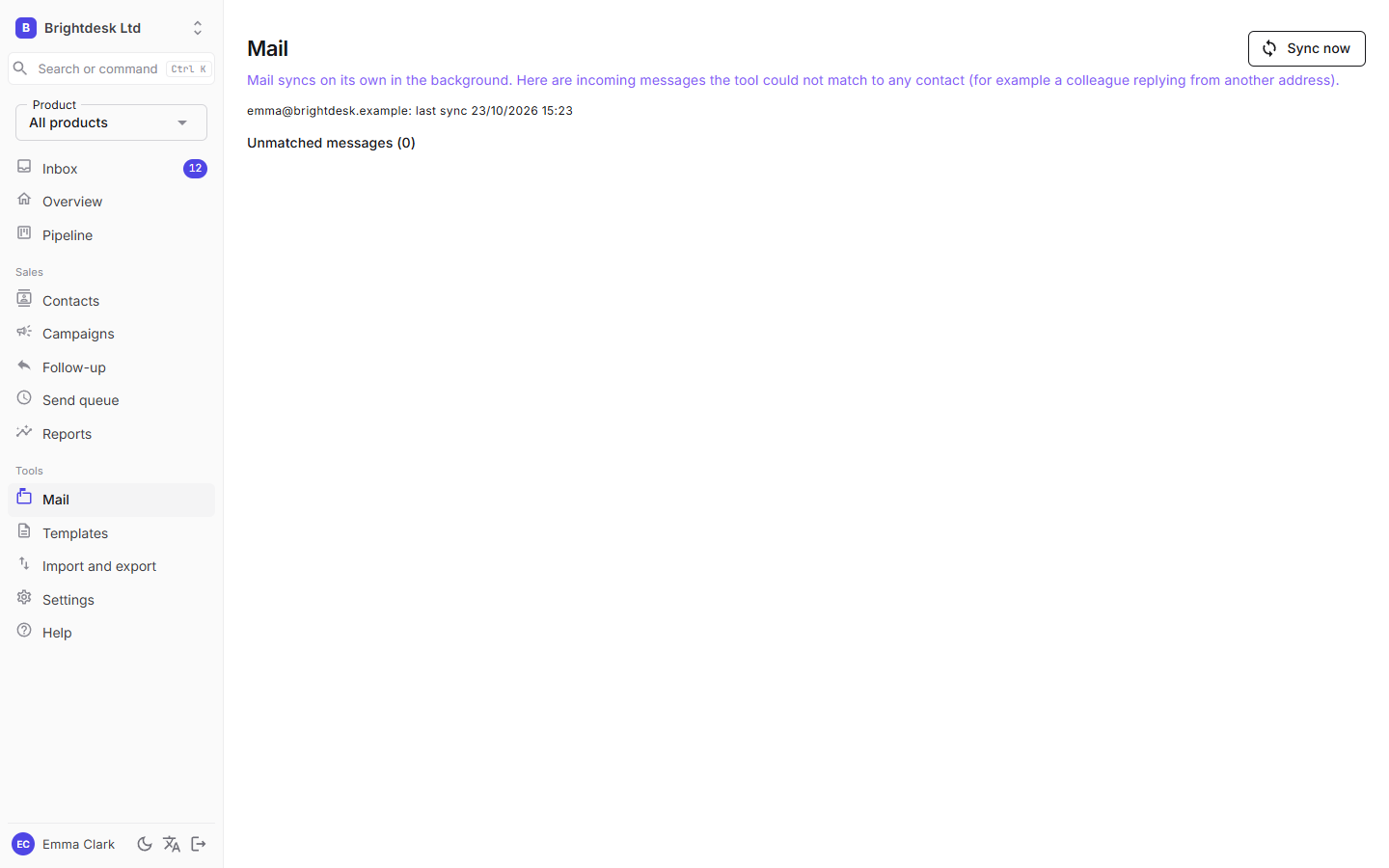
Incoming messages the app could not match to any contact, for example when a colleague replies from another address or someone forwards your email. Choose a contact and click Link: the message joins the conversation and is classified.
Add as a new contact creates a contact from the sender. Reply also creates the contact and then opens an empty reply in the Inbox (Drafts tab), so the reply goes into the same thread as usual. Show full message opens the original email with attachments.
Templates
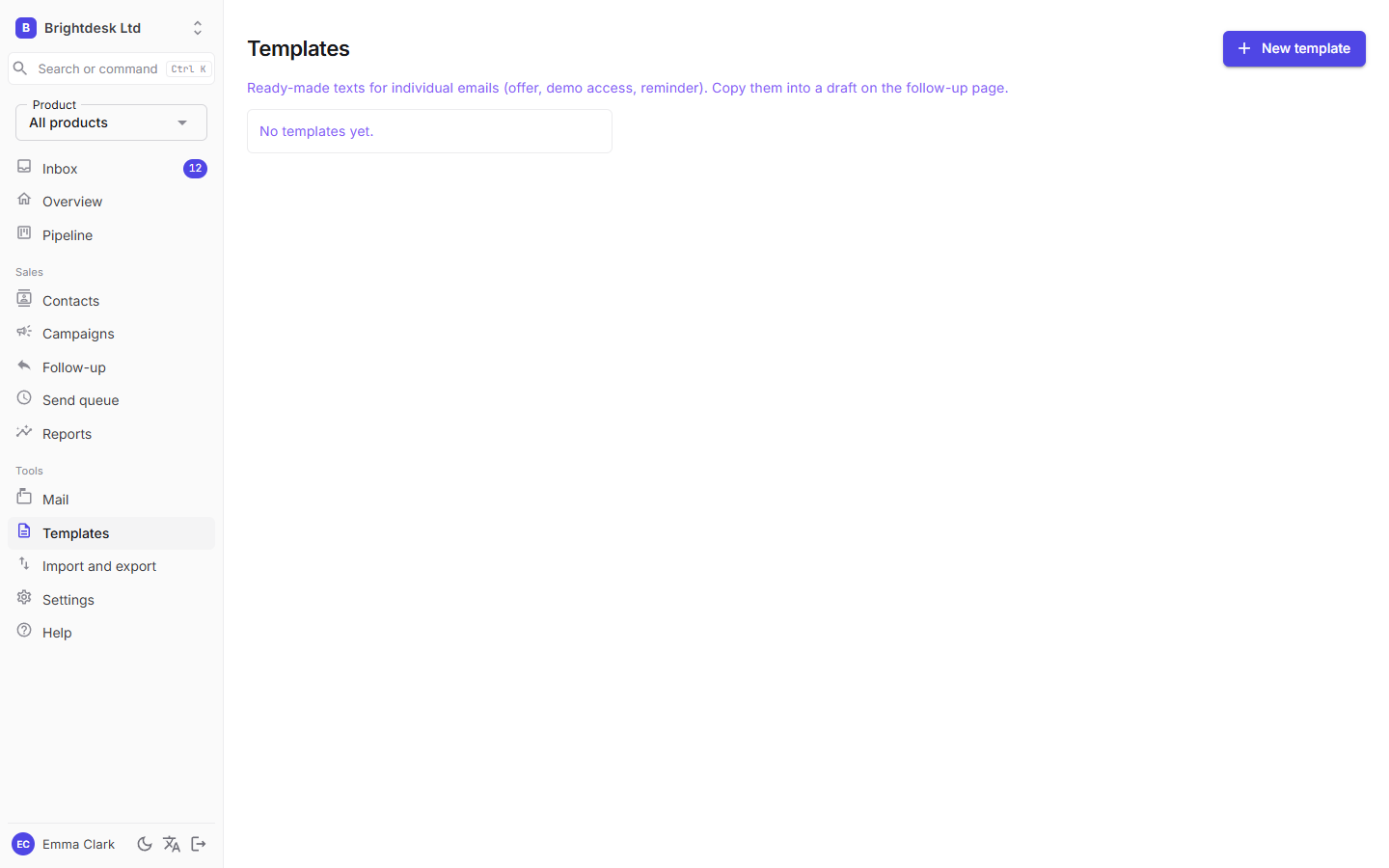
Ready-made texts for single emails (offer, demo access, reminder). Copy them into a draft in the Inbox or on the Follow-ups page. The signature and footer come from Mail layout, so you don't need them in templates.
Import and export
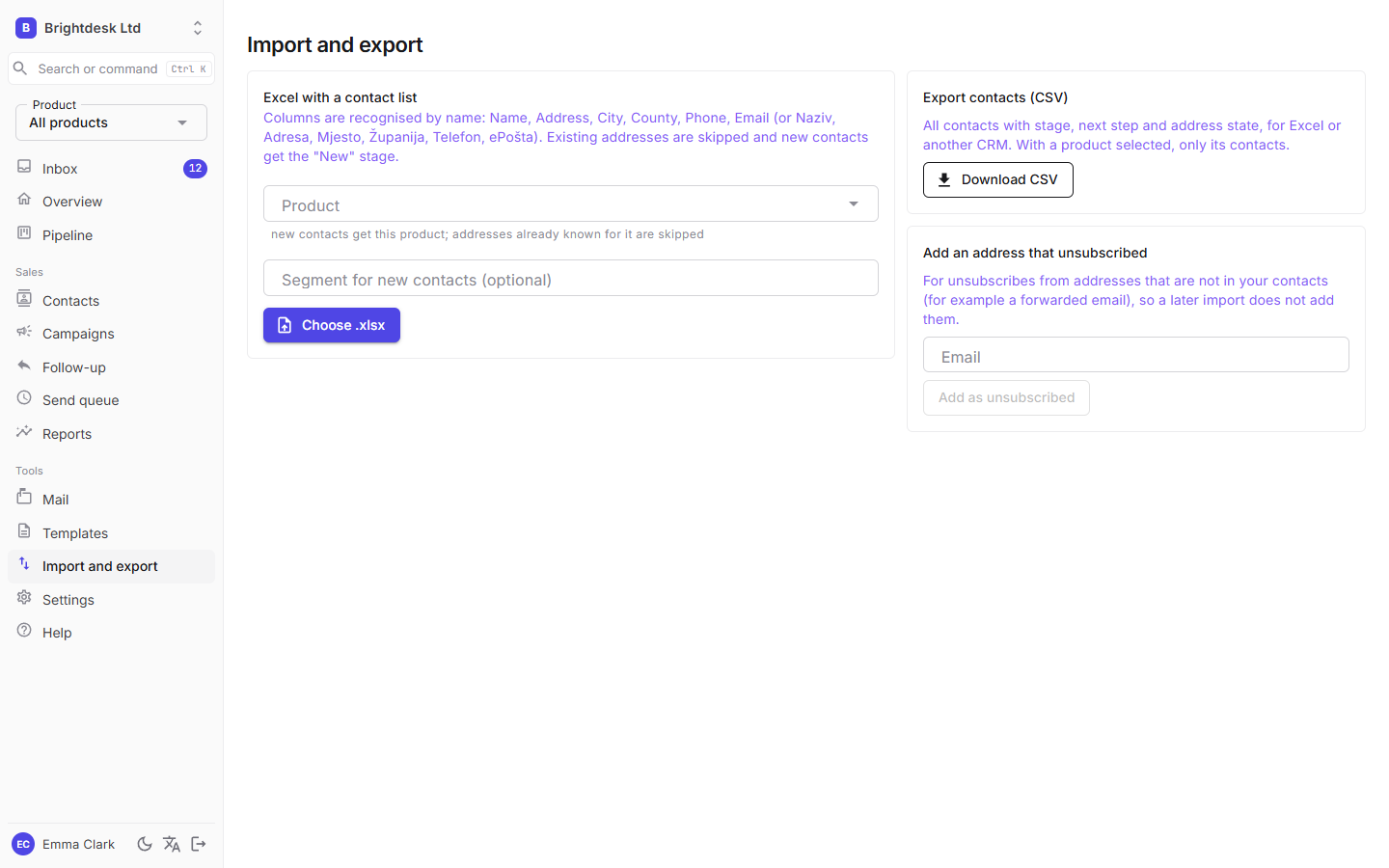
- Excel: columns are recognised by their name (Name, Address, City, Region, Phone, Email or the Croatian equivalents). You first see what would be imported and then confirm. Existing addresses and addresses erased on request are skipped. A damaged file shows an error instead of importing.
- Export contacts (CSV): all contacts with stage, next step and address state, for Excel or another CRM. With a product selected, only its contacts are exported.
- Add an address that unsubscribed: for unsubscribes from addresses that are not contacts, so a later import does not add them.
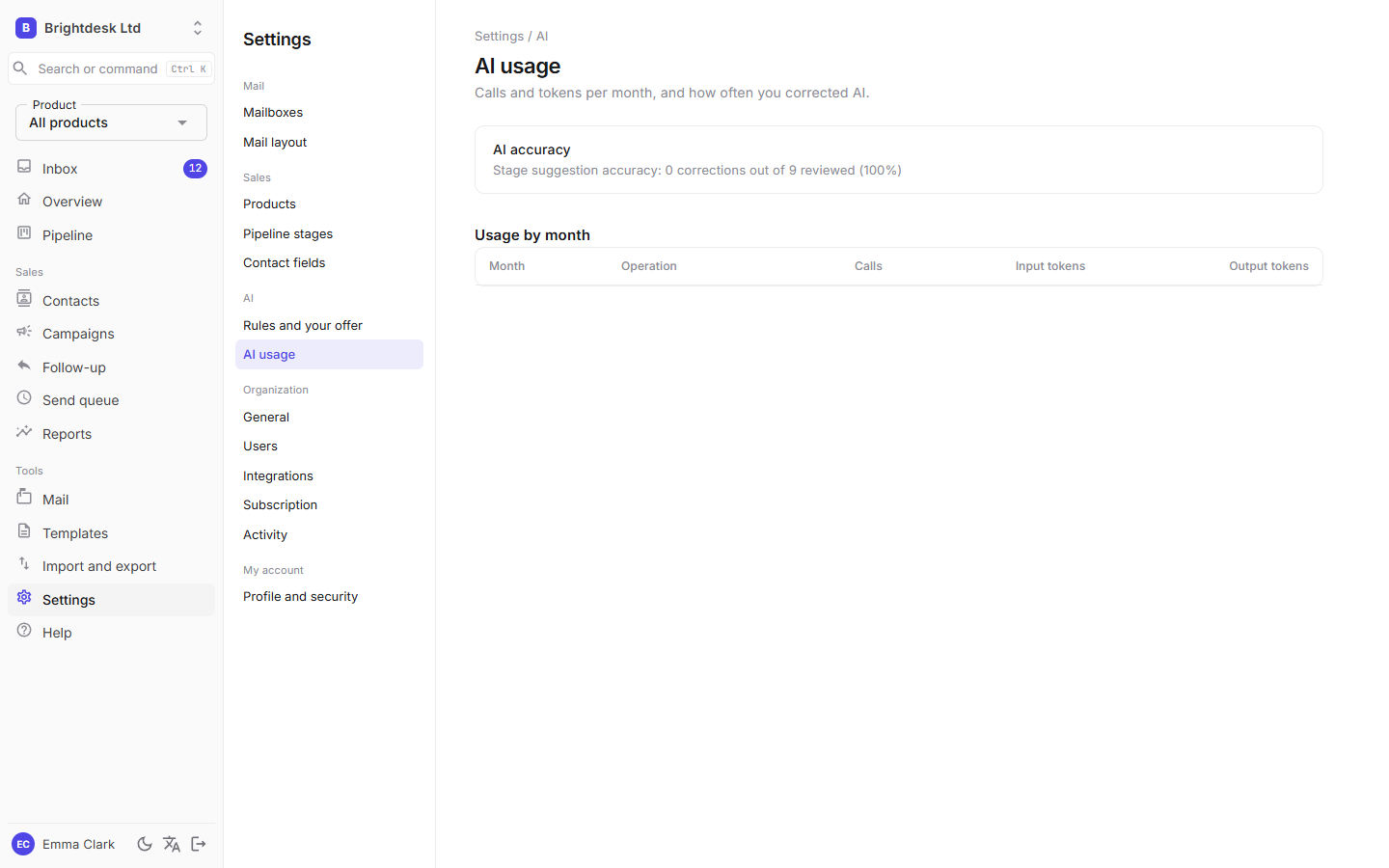
AI usage
Settings → AI usage. The number of AI calls and tokens per month and action, and the accuracy of stage suggestions (how many you corrected).
Daily digest
Every morning at 7 (Central European time) Followloop sends a short summary:
- conversations waiting for your reply, with names;
- follow-up drafts and AI suggestions to approve;
- next steps for today;
- how many emails were sent and how many replies came in the last 24 hours;
- mailboxes where sending was paused.
By email: each user turns it on in Settings → Profile and security → Send me a daily digest by email. It is sent from the default mailbox to the user's address. A member with limited access gets the digest only for their products.
To Slack or Teams: an owner enters an incoming webhook address in Settings → General. Every morning a digest for the whole organization arrives there as a plain text message (a Slack incoming webhook or a Teams channel that accepts messages with a text field).
If nothing happened, no digest is sent.
Subscription
Settings → Subscription (owners only). Every new organization has a 14-day trial with the limits of the middle plan.
- The page shows the state (trial, active, payment late, expired), until when it is valid and how many mailboxes, users and AI calls you use against the plan.
- Choose next to a plan opens Stripe's card payment page. After paying you return to Settings, and the subscription is active as soon as Stripe confirms the payment.
- Manage subscription opens Stripe's portal: change plan, card, invoices and cancellation.
| State | What happens |
|---|---|
| Trial, active subscription | Everything works, up to the plan limits. |
| Payment late | Everything works while Stripe retries the charge. Update your card. |
| Trial ended or subscription cancelled | Sending and AI stop. Data, mail and sign-in keep working. As soon as you choose a plan, everything continues. |
When the plan does not allow another mailbox or user (pending invitations count), the app says so and does not add it. Deleting the organization also cancels the subscription.
Integrations (API, webhooks, CRM)
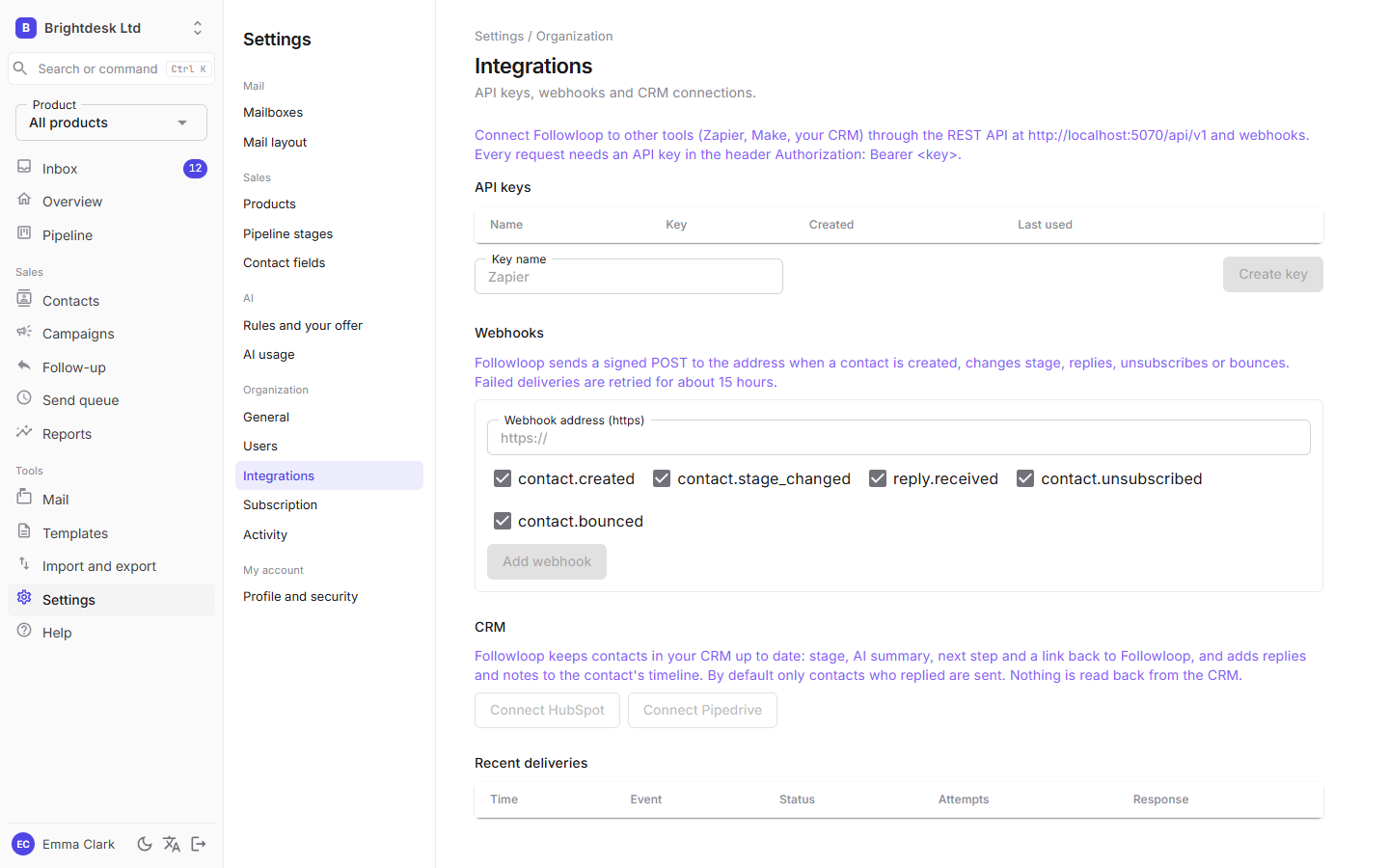
Settings → Integrations (owners only). Three ways to connect other tools:
| What | Direction | For |
|---|---|---|
| API key | other tool → Followloop | Zapier, Make or your own system reads and adds contacts, changes stages, adds notes. |
| Webhook | Followloop → other tool | Followloop reports when a contact is created, changes stage, replies, unsubscribes or bounces. |
| CRM (HubSpot, Pipedrive) | Followloop → CRM | Contacts, stage, AI summary and next step are written to your CRM, and replies as notes. |
API key
- Enter a name (for example "Zapier") and click Create key.
- The key is shown only once. Copy it right away. Later only its beginning is visible.
- Paste the key into the tool you are connecting (for example the Followloop app in Zapier). The Last used column shows whether the connection works.
- Revoke disables the key immediately. The tool using it gets an error until you enter a new one.
A key works only for your organization. The technical API description for developers is available from support.
Webhook
- Enter the https address the other tool gave you (for example a Zapier "Catch Hook"), tick the events and click Add webhook.
- The secret for verifying the signature is shown only once. You need it only if your system verifies the signature; Zapier does not.
- Send test sends a sample event. The Recent deliveries table shows the status and the other side's response.
CRM: HubSpot or Pipedrive
- Click Connect HubSpot or Connect Pipedrive, sign in to the CRM and approve access.
- Every 2 minutes Followloop sends changes: contact, stage, AI summary, next step and a link back to Followloop. It adds replies and notes to the contact's history in the CRM.
- By default only contacts who replied are sent, so the CRM is not filled with cold leads. The All contacts switch sends everyone.
- Disconnect ends the connection. Data already in the CRM stays.
- Nothing is read back from the CRM. If you change a stage in the CRM, Followloop does not see it.
- One CRM account can be connected to only one Followloop organization.
- If the CRM rejects a record (for example an invalid address), it is skipped and the rest continue. A message about skipped records appears under the connection.
- If someone revokes access in the CRM, the connection is switched off and must be connected again.
If the CRM buttons are not active, that integration is not switched on yet.
How mail is matched to contacts
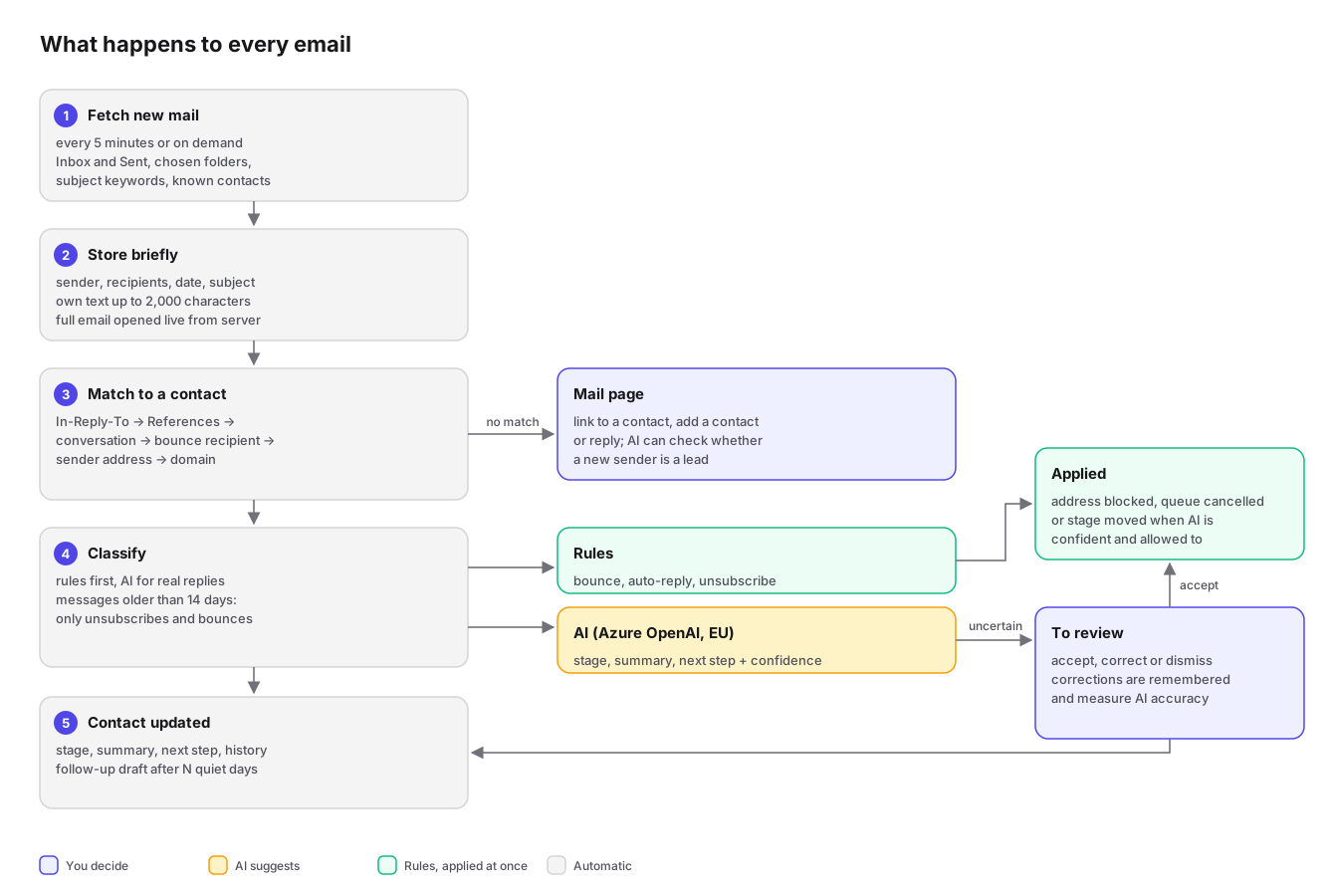
For every new message the app looks for a contact in this order and stops at the first hit:
- In-Reply-To: the message answers an email the app has already seen;
- References: the chain of earlier messages in the conversation;
- Conversation ID (Outlook conversationId);
- the recipient in a bounce message ("address x does not exist");
- the sender's address (or the recipient's, for emails you sent);
- the domain, if only one address with that domain is in the contacts and it is not a public service such as Gmail. Unsubscribes and bounces matched this way go to review.
That is why a reply from another address at the same company usually ends up with the right contact. What does not match goes to Mail.
How messages are classified
| Type | How it is recognised | What happens |
|---|---|---|
| Bounce | rules: a sender like mailer-daemon, diagnostic code 5.x.x | the address is marked as broken. With IMAP and a bounce folder set, the message is moved out of the Inbox. For a lead in a conversation it goes to review. |
| Delivery delay | rules: "delayed" | nothing, it is not a bounce |
| Auto-reply | headers and subject (out of office, holiday) | logged. If it mentions a new address, it goes to review. |
| Unsubscribe | phrases like "remove us from your list", "unsubscribe" | the address is unsubscribed and queued emails are cancelled. For a client it goes to review. |
| Reply | everything else | AI writes a summary and next step and suggests a stage |
A stage only moves forward (for example from "Interested" to "Requested an offer"), never back automatically.
Address, contact, product
A contact is a lead for one product. An address is a person's or company's email. One address can have several contacts, one per product.
- If an address is a lead for several products, new mail goes to the contact of the mailbox's product, otherwise to the one you wrote to last. A reply to a specific email always goes to the right contact (see matching above).
- Unsubscribes and bounces apply to every contact with that address.
GDPR and privacy
- Only the sender's own text of each message is stored (at most 2,000 characters), without quoted earlier emails and without attachments.
- The text of messages is deleted after the retention period.
- Deleting all of a contact's data deletes the address in every product. Only a one-way hash of the address remains, so an import does not bring it back.
- The sync scope lets you keep private mail out entirely.
- Passwords and tokens are stored encrypted in Azure Key Vault.
- Every organization sees only its own data.
Details are in the privacy policy, the data processing terms and the list of subprocessors.
Export and deletion of the whole organization
Settings → General (owners only):
- Organization data → Download all data gives a ZIP of JSON files: contacts, messages, campaigns, stages, settings, users and the rest. Passwords, tokens and API keys are not included.
- Danger zone → Delete organization permanently deletes all of the organization's data, stored passwords and tokens, and cancels the subscription. To confirm, type the exact organization name. If you belong to another organization, the app switches you to it; otherwise it signs you out.
FAQ
Why didn't my lead move to a new stage?
The suggestion is probably in Inbox → To review, unless you turned on automatic changes. Without AI the stage changes only from "New/Contacted" to "Conversation" when a reply arrives.
Someone replied, but I don't see it in the Inbox.
Look in Mail; they may have written from another address. Also check the sync scope: a folder or keyword may be filtering it out.
Do we need Microsoft or Google email?
No. You sign in with a Microsoft or Google account, but a free Microsoft account can be created for any existing work address. Your mailbox can be with any provider that supports IMAP and SMTP.
Can several people work in the same organization?
Yes. Invite colleagues in Settings → Users: enter their email, the app sends an invitation, and they sign in with Microsoft or Google using that address. You can limit a member to some products, and colleagues from the same Microsoft 365 organization can join without an invitation if you turn that on in Settings → General.
I sell for several clients. Do I need several organizations?
Not necessarily. One organization with a product and a mailbox per client is enough, and you can limit colleagues per client. A client needs their own organization when they want to use Followloop themselves. See examples 3 and 5.
Can one account belong to two organizations?
Yes. Accept an invitation from the other organization or create a new one in the organization menu (the organization name at the top of the left menu). Switch by clicking the organization name.
How do I connect Gmail?
Settings → Mailboxes → Add mailbox → Add Gmail. The servers are filled in. Turn on 2-Step Verification on the Google account, create an app password (myaccount.google.com/apppasswords) and use it instead of the normal password.
What if a mailbox shows an error?
On the Overview the dot next to the mailbox is red, and in Settings the mailbox is tagged "Needs attention" with a description of the error. Most often the password changed (IMAP) or the permission expired (Outlook: click Connect again).
Who do I contact?
Write to the support address on the Followloop website.